




01
Counter Cam
See count by workpiece.
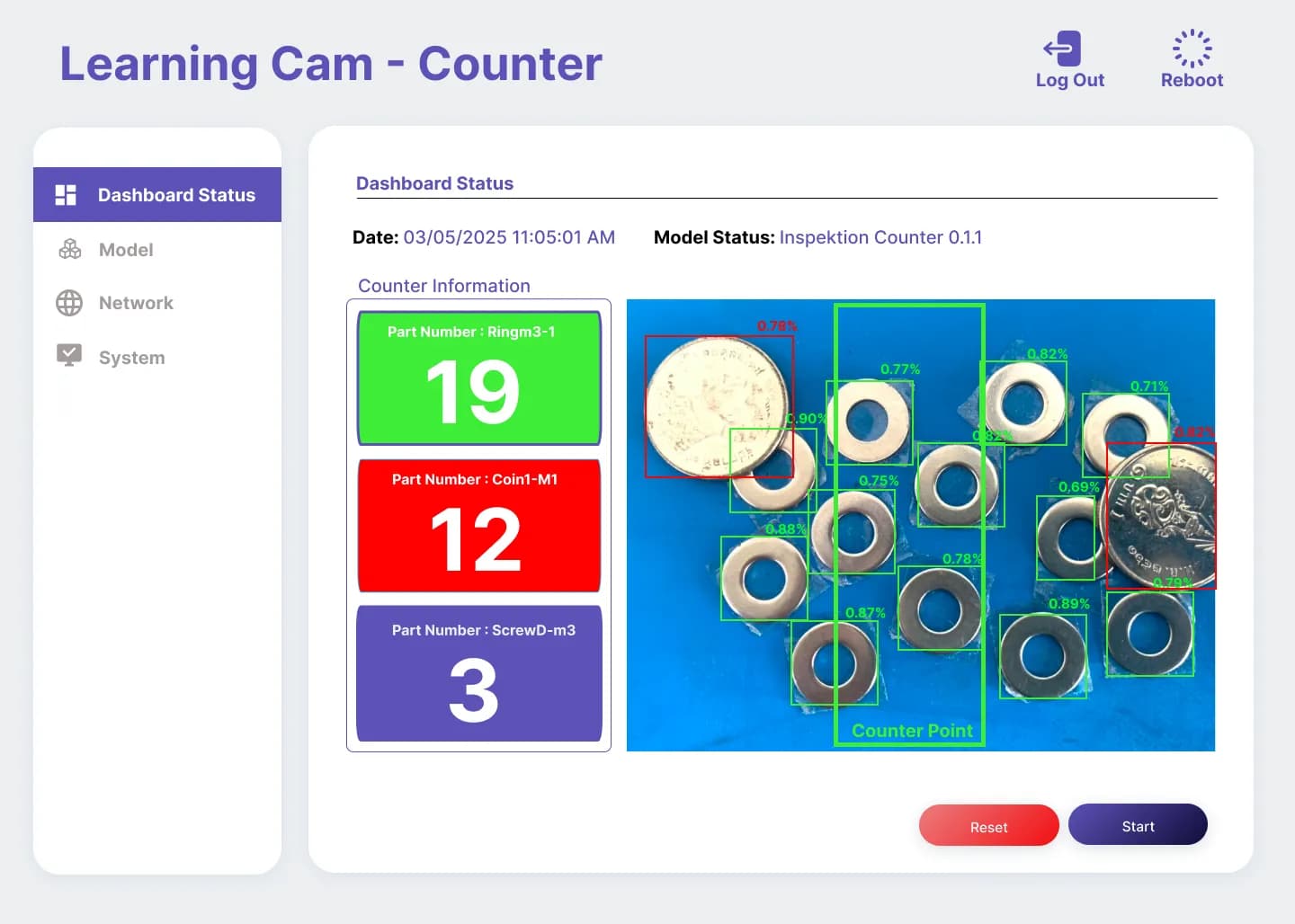
Count workpieces after passing the counting line, up to 3 Part Nos. can be counted separately, suitable for jobs requiring knowledge of the number of each type of workpiece.
MODERN FACTORY / PRODUCT INSPECTION
Edge AI camera for counting and inspecting products at the line front, processes data internally, view results and configure settings through a web browser by selecting a model that matches your workpiece
Camera price · Pricing for accessories and installation offered separately
Built-in AI processingNo need for separate PC or GPU for processing
View specs ↗Counter CamCount separately by Part No.
Inspection CamShow OK and NG counts
Web ApplicationView results and settings through browser
COUNTING / INSPECTION
Select counting work or quality inspection work, then test with real product samples, light, and speed at the installation point
Counter Cam
Count workpieces after passing the counting line, up to 3 Part Nos. can be counted separately, suitable for jobs requiring knowledge of the number of each type of workpiece.
Inspection Cam
Compares workpieces for completeness of parts or color differences, select inspection mode to match the work, then count separate OK and NG results
LearningCam focuses on inspecting products and counting quantities. To check work sequences or employee postures, see Task Cam →
FROM SAMPLE TO MODEL
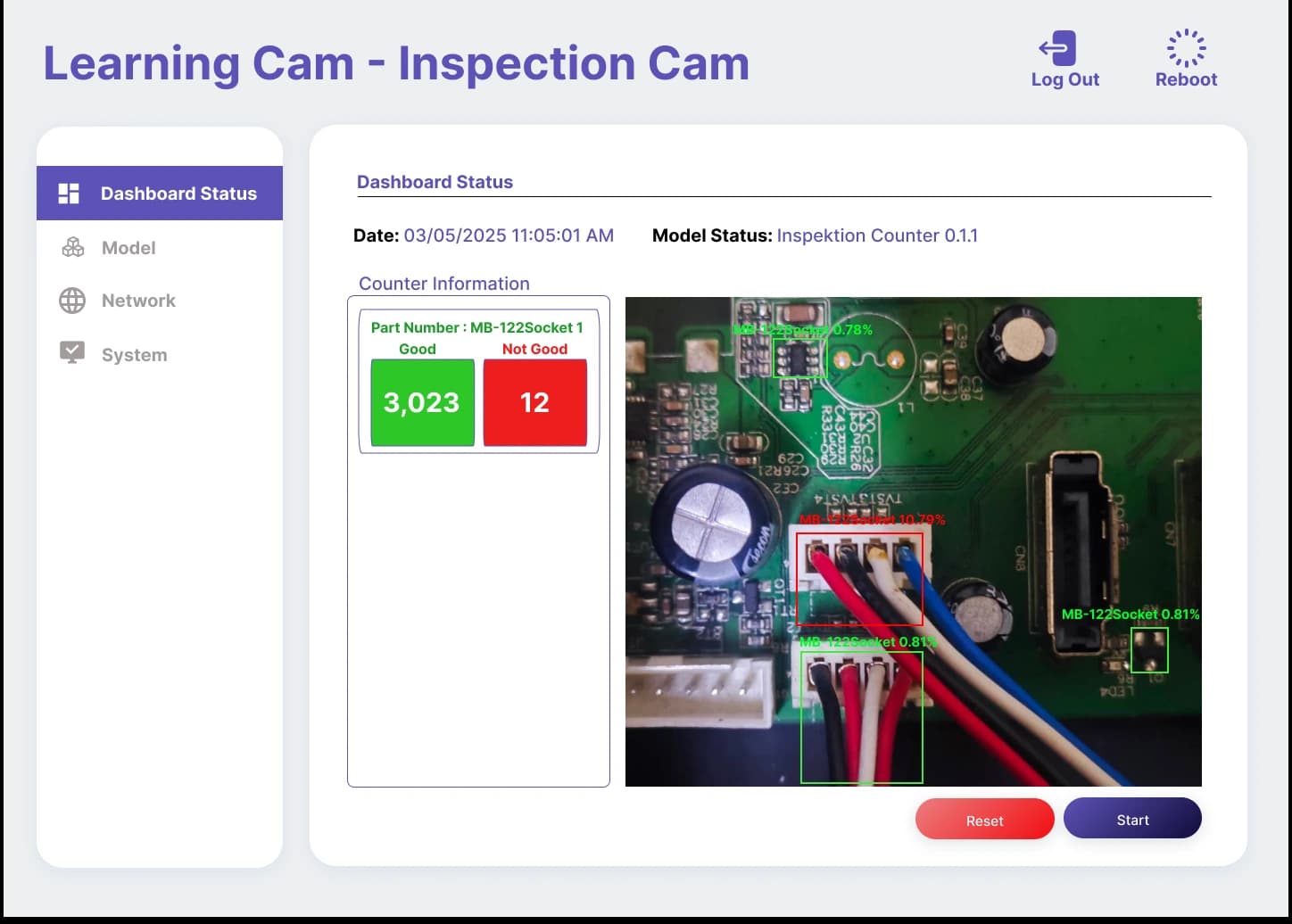
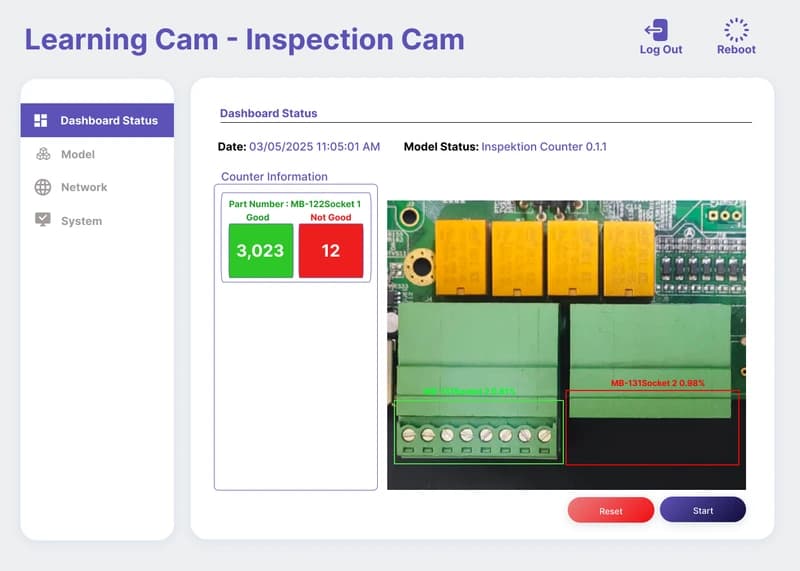
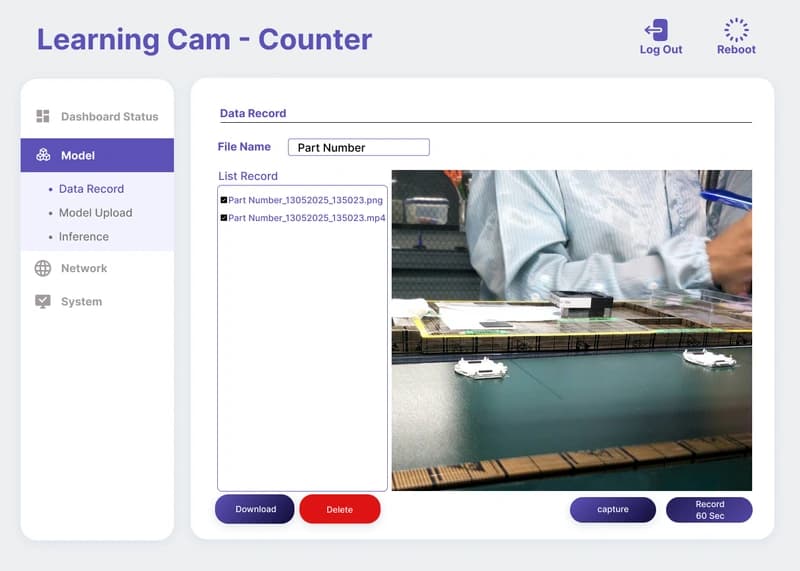
Screen shot from LearningCam sales slide
The appearance of the program may differ depending on the version
Inspection Cam example for inspecting components on a circuit board, compared to the model set for that workpiece
Take photos or record videos for up to 60 seconds, download to teach the model outside the camera, then upload back to test
Manufacturing engineers and quality teams still counting or inspecting parts by eye on the line
Workplace images, sample parts or work steps to be inspected, and the system receiving data from the camera
LearningCam is an Edge AI camera with a web app integrated into the camera itself. It counts workpieces passing through the counting line and separates good (OK) and bad (NG) items using AI models tailored to your workpieces. The camera processes the image internally, so there is no need to send images to a computer or cloud. You can view results and configure settings from a browser on tablets or multiple computers.
Old-style counters only know that something passed, but cannot distinguish between different workpiece models. Manual counting and visual inspection can tire inspectors and lead to mistakes. LearningCam uses images from the camera instead, and has 2 modes of operation as shown in the table below.
| Job type | What does the camera do? | Suitable for which types of jobs? |
|---|---|---|
| Count workpieces (Counter Cam) | Counts every workpiece passing through the counting line (Counter Point) and displays real-time count on the screen. Can separately count up to 3 Part Nos. | Replaces counting sensors, counts multiple small workpieces such as rings, screws, etc. |
| Inspect and count (Inspection Cam) | Determines whether each workpiece is good (OK) or defective (NG) and counts them separately. | Compares workpieces, checks incomplete assembled parts, and checks color differences. |
LearningCam observes workpieces, while Task Cam observes the work process of employees at the workstation. If your challenge is counting or defect rate, start with LearningCam. If your challenge is whether employees complete tasks in order and how long each step takes, see Task Cam.
| Title | LearningCam | Task Cam |
|---|---|---|
| What does the camera observe? | Workpieces passing through the counting line or within the inspection frame | Hands and postures of employees at the workstation |
| Results obtained | Counting by Part No. and OK/NG count (Inspection Cam model) | Sequence steps completed or skipped and time for each step |
| Price | THB 46,500 per unit | Request a quotation |
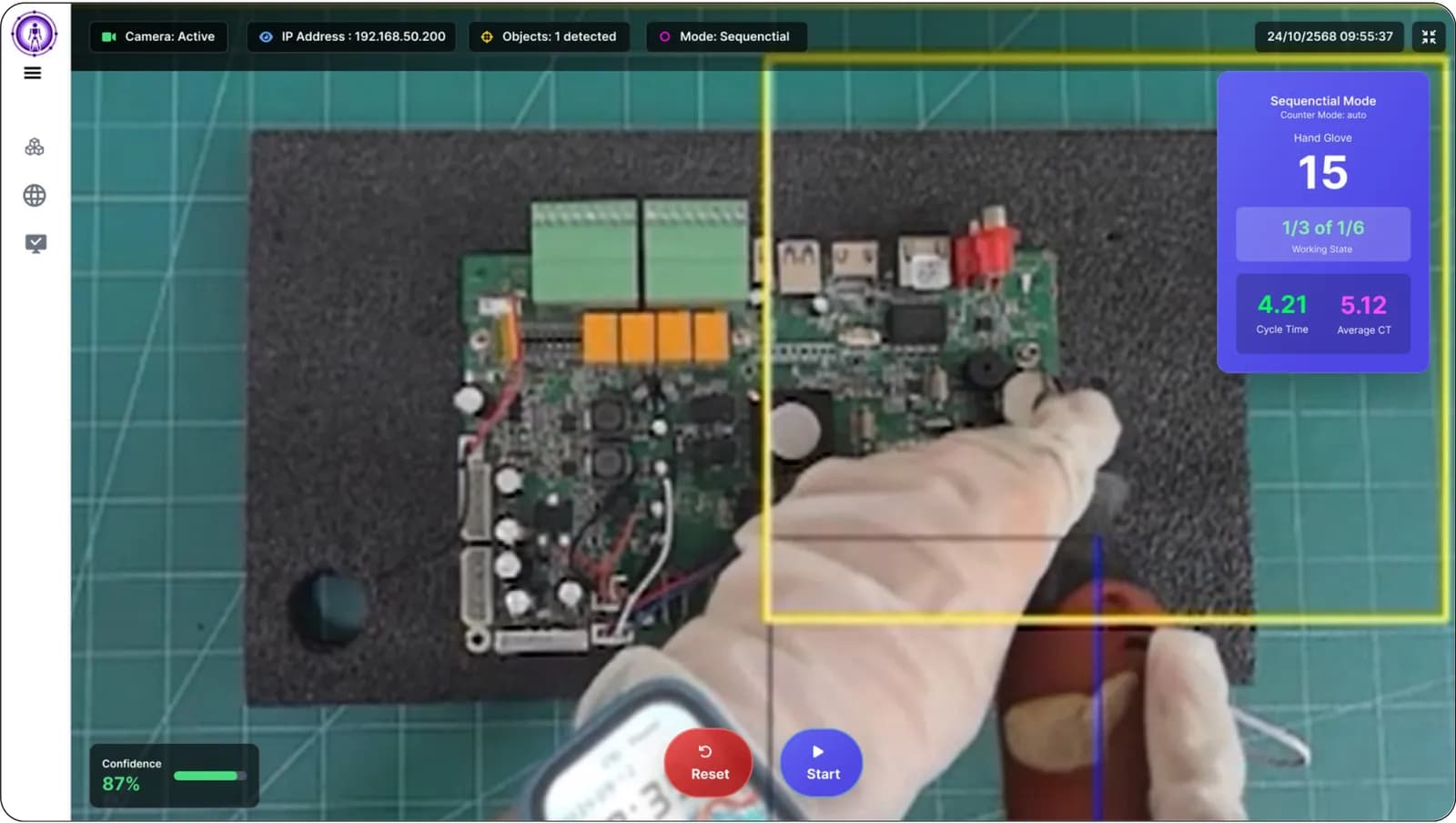
The LearningCam web app has a hand position detection model (TaskCam) and a 17-point skeleton model. If your problem involves work sequence or employee posture, see Task Cam. The Skeleton model is used to observe postures to adjust workstation ergonomics, not to evaluate or punish individual employees, and must inform employees before using it.
LearningCam starts up in 5 steps: mounting the camera, powering and networking, selecting models and drawing frames, testing before going live, and enabling AutoRun. All steps are done through the camera's web interface, no software installation required.
Mount the camera above the inspection point
Position the camera to view the entire area where the workpiece passes. The Inspection Cam model specifies that a 12mm lens at 65cm sees an area of approximately 14x20cm, and at the maximum distance of 80cm, it sees approximately 16x23cm.
Power and network connection
Supply power to the camera. The standard model connects via Wi-Fi 6, while the Pro model connects via LAN RJ45 to the Router or Switch. Tablets, computers, or screens on the same network can view the results.
Select models and draw frames
Open the browser and go to the camera's web page. Select the AI model for the job, draw the detection area frame, then rotate or adjust the image resolution to clearly see the workpiece.
Try before using
Press Test Run to view live results. If counting or separating is still incorrect, record real workpiece video as training data for the model and upload the new model.
Enable AutoRun and start the process
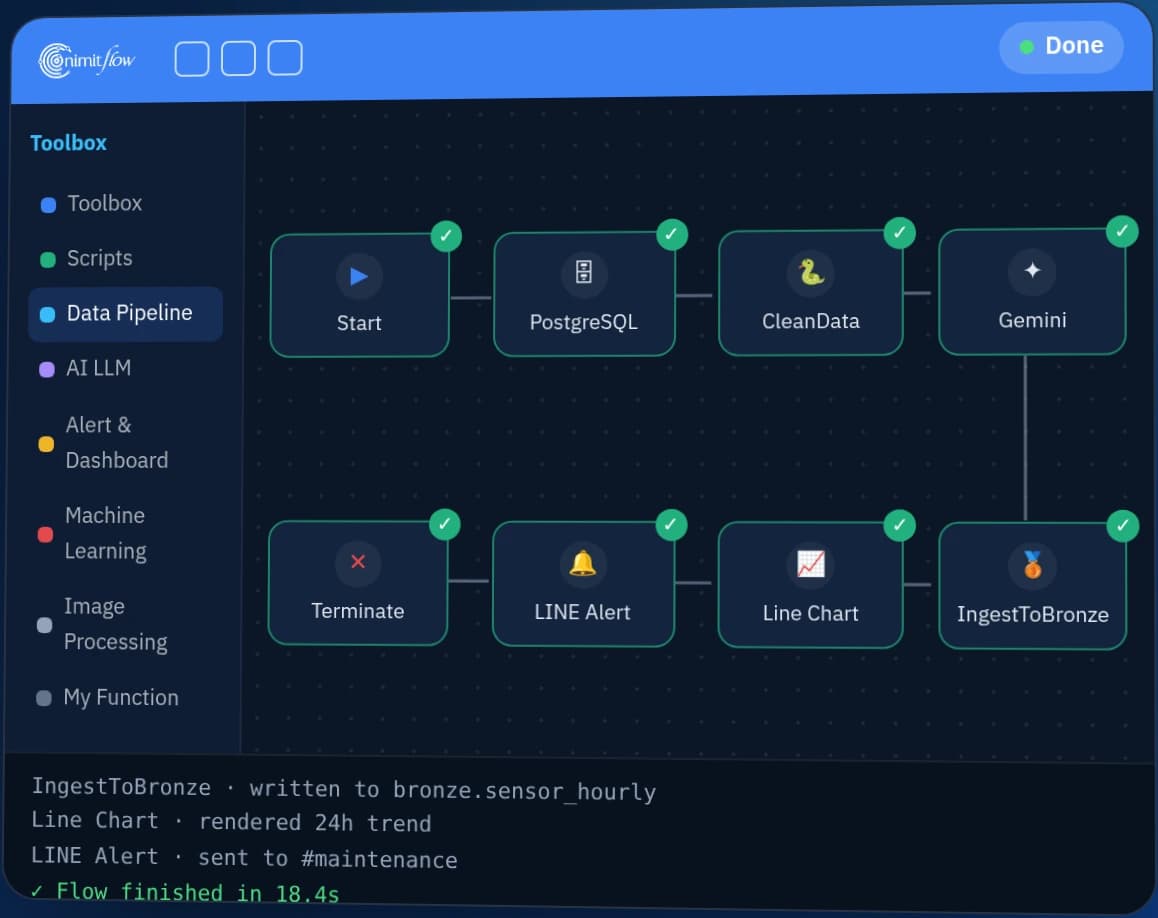
Set the camera to log in and start self-inspection when powered on. Then bind Webhook or nimitFlow to receive results.
The Inspection Cam model of LearningCam sends count data via Webhook (an automatic data transmission channel to the destination system). The message includes camera Part Number, processing time, OK count, NG count, trigger signal, and date-time. The factory's system or nimitFlow can receive this data for further reporting. You don't need to record counts manually.
Processed images on the camera itself, no need to send to the cloud. Results and files are sent only to the destinations you specify.
LearningCam is suitable for jobs where workpieces pass through the same point repeatedly and require count data or OK/NG results from images. LearningCam is not suitable for jobs that measure size numerically for SPC (Statistical Process Control) and for checking employee work sequences. Use this table to check your job before scheduling a demo.
| Job | Is it suitable for LearningCam? | Reasons or things to do |
|---|---|---|
| Count small workpieces passing through the same point, such as rings, screws | Suitable | Counter Cam model counts when the workpiece passes the counting line, the workpiece must run through the area visible to the camera |
| Separate multiple models at a single point | Suitable if no more than 3 Part Nos. | If more than 3 Part Nos. at a single point, consult us first |
| Separate good from bad items based on image | Suitable with Inspection Cam model | Must have real defective samples for teaching the model and testing with actual workpieces before use |
| Workpieces of multiple colors or models | Possible but requires planning | Teach and test the model separately according to color or actual production model |
| Workpieces or inspection area larger than image area | Consult us first | Inspection Cam document specifies an image area of approximately 16×23 cm at maximum height of 80 cm |
| Sort out defective workpieces from the conveyor belt | Additional equipment is required | Separate pricing for ejection units such as air blow units. Testing must be done at actual belt speed. |
| Measure size numerically for SPC | Not suitable | The result of LearningCam is a count and OK/NG result, not measurement data. This task uses InGauge with InQC. |
| Verify work sequence and time for each step | Not suitable | Use Task Cam which observes hands and steps of workers |
| Installation point with much water or dust | Consult us first | No documentation for water and dust protection level of the camera yet |
Size measurement tasks use InGauge with InQC. Work sequence verification uses Task Cam.
Defect sorting should not be assessed by overall accuracy alone. For example, among 2,000 workpieces, 40 are defective. If a camera labels every piece as good, overall accuracy is 98 percent, yet it detects no defects. Assess two measures together: how many defective pieces are detected out of all defects, and how many good pieces are incorrectly rejected
The confidence score given by the model is not the probability of being correct until compared with real parts. We recommend running the camera alongside existing inspection before changing the process. Camera results are supplementary information. Your quality team remains the final decision-maker for releasing lots.
During B.E. 2568–2569, we installed 1 LearningCam Inspection Cam above a cap conveyor for a plastic water-bottle cap manufacturer. Its AI model was trained on real cap images from the factory to classify each cap as good (OK) or defective, such as excess flash (extra plastic along the mold seam) or incomplete molding, and count both categories. The Controller and Reject unit is designed to blow defective caps off the conveyor; rejection test results still need confirmation
An internal test report for January–March B.E. 2569 recorded inspection and counting of about 398 white caps per minute for 120 consecutive minutes, meeting the team’s criteria. These are inspection and counting results, not acceptance results for the complete rejection system. Blue caps tested with the white-cap model did not meet the criteria. Model adjustment and confirmation of full-system delivery are still in progress
During B.E. 2559–2560, we developed and installed a workpiece-counting system with a camera and a separate processing unit (not LearningCam) on a vibratory feeder for an industrial machinery customer. The system counts 5 types of workpieces by lane as they cross the counting line. The project has been delivered with an operating manual and work checklist
Read full case
Before requesting a quotation, we require images or clips of actual workpieces in all colors and models that need counting or inspection, along with examples of real defects found. We recommend starting training the model with the model you produce the most first, testing at the actual conveyor belt speed according to agreed criteria, then adding other models. If automatic defect removal is required, allocate a separate budget for the removal system and testing time apart from the camera.
What's inside the box
-- Inquire for details of the desired model and set from the team
12-month warranty
Equipment warranty according to conditions in the quotation
STANDARD / PRO
LearningCam There are 2 hardware models. Choose the standard model for Wi-Fi connectivity or the Pro model for higher processing power and LAN networking.
| Specifications | StandardSTANDARD / Wi-Fi 6 | Pro3 TOPS / LAN RJ45 |
|---|---|---|
| Image Sensor | 1/3″ · Supports up to 800 × 600 | SONY IMX415 1/2.8″ · Supports 4K |
| CPU | 1.0 GHz | 1.6 GHz (RV1126B-P) |
| AI NPU | 1.0 TOPS | 3.0 TOPS |
| RAM | 256 MB DDR3 | 1 GB |
| Storage | 8 GB | 16 GB eMMC |
| Network | Wi-Fi 6 | LAN RJ45 10/100M |
| Power supply | 5V @ 500 mA (2.5W) | DC 5V (< 5W) |
| Software | LearningCam · Web app and built-in AI | |
According to the manufacturer, the Pro model is 2–3 times faster and more accurate than the standard model. Actual results depend on the AI model, task, lighting and installation. Test with your actual application before choosing a model.
4K refers to the resolution supported by the Pro sensor model, while resolution and AI processing speed depend on the model and settings
| Size | Ask about the confirmed values for your model and intended use |
|---|---|
| Weight | Ask about the confirmed values for your model and intended use |
| Operating temperature | Ask about the confirmed values for your model and intended use |
| Water and dust protection level (IP) | Ask about the confirmed values for your model and intended use |
| Power supply | Standard: 5V @ 500 mA (2.5W) · Pro: DC 5V (< 5W) |
| Connection | Standard model connects via Wi-Fi 6 · Pro model connects via LAN RJ45 10/100M through Router or Switch in the same network as viewing device |
| Job type | Counter Cam · Inspection Cam · TaskCam model · Skeleton model |
| Processing | On the camera itself (Edge AI) no separate PC or GPU required |
| Standard model image area (12mm lens) | Distance 65 cm approx. 14×20 cm · Maximum distance 80 cm approx. 16×23 cm |
| Counting | Up to 3 Part No. separation · Inspection Cam model separates OK/NG |
| AI model | Uploads via web app · TaskCam (hand_landmarks, 640×448) · Skeleton (yolov8n_pose COCO-17, 320×240) |
| Recording | Still images and video at 60 seconds each, download individually or as .zip file |
| Settings | Built-in web app through browser, no need for additional software |
Standard and Pro models are hardware versions, Counter Cam and Inspection Cam are application modes. Choose a model and test it with actual workpieces before installation.
Product inspection camera with built-in AI processing and analysis, connect to Router for web browser access and send data to nimitFlow as an optional feature.
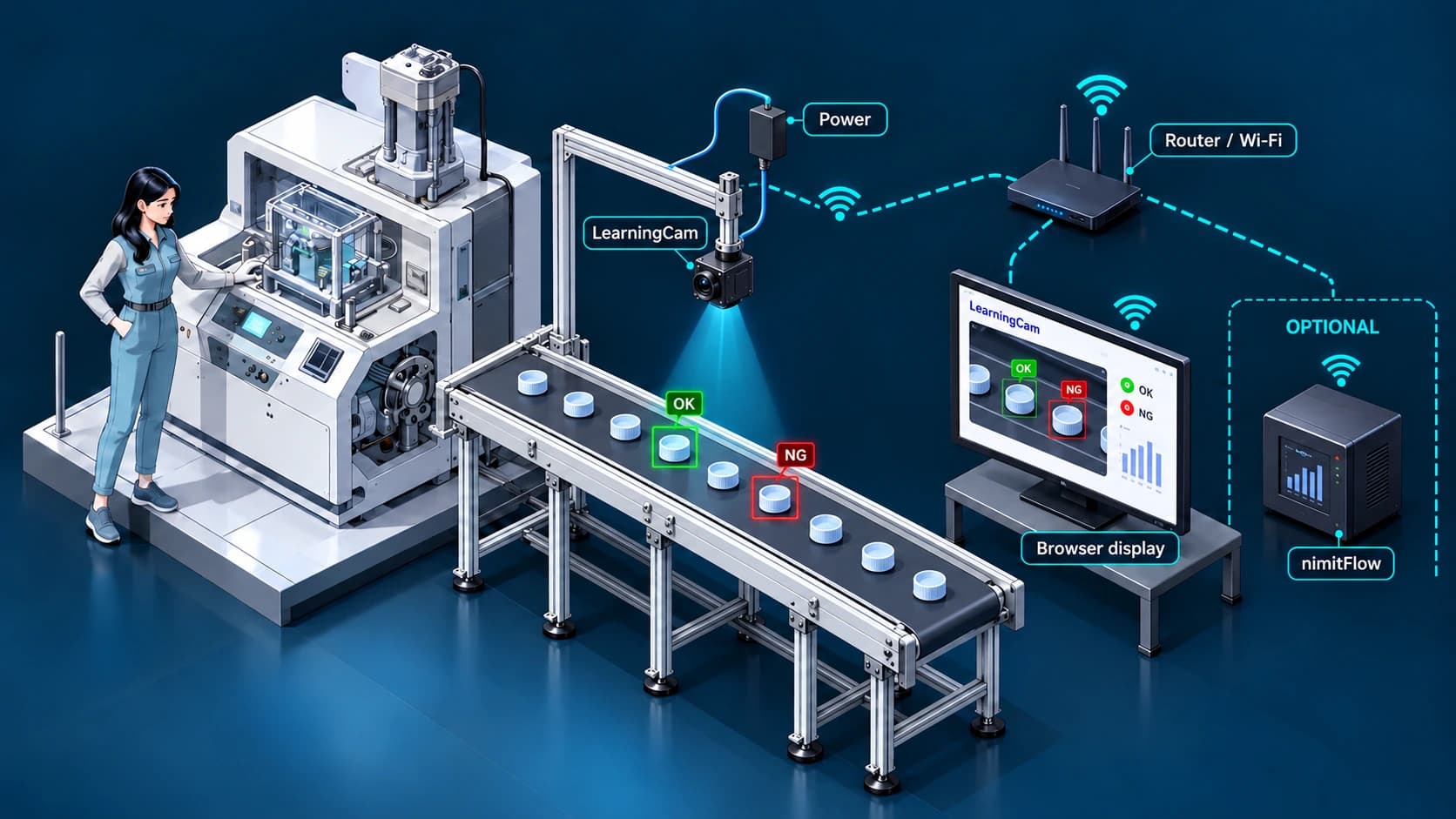
Standard model connects via Wi-Fi 6 · Pro model connects via LAN RJ45 10/100M through Router or Switch in the same network as viewing device
Mount camera above inspection area and power supply, select model and detection frame to match the product.
Camera and tablet PC or monitor are on the same network, use web interface to view results and set parameters.
Inspection Cam model sends OK/NG counts via Webhook or connects to nimitFlow as an optional feature.
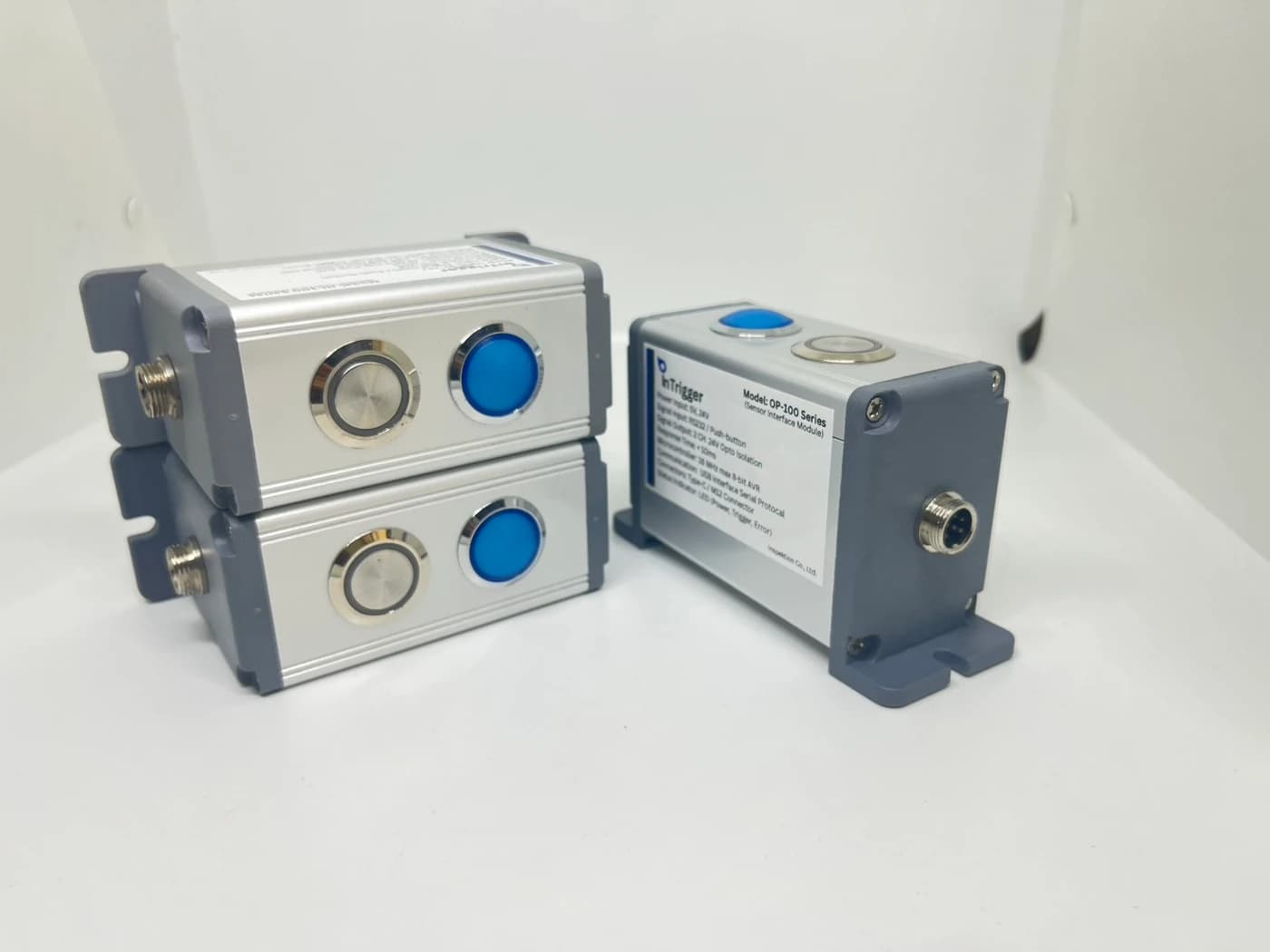
nimitFlow is an optional feature, not required for AI processing in the camera. The sorting unit and machine connection must be evaluated and tested separately according to the scope of work.
Prepare images or clips of the workpiece and the location where the camera will be placed, then send us the details of the job. LearningCam must set up the AI model and inspection frame to match each type of workpiece, so we need to configure it with your actual workpieces together with our team before use. We schedule a demonstration with your actual workpieces, and quote the equipment package and installation scope.
The standard version uses a 1.0 GHz CPU, 1.0 TOPS NPU, 256 MB DDR3 RAM, and Wi-Fi 6. The Pro version uses the Sony IMX415 sensor supporting 4K, a 1.6 GHz CPU (RV1126B-P), 3.0 TOPS NPU, 1 GB RAM, 16 GB eMMC storage space, and a 10/100M LAN RJ45 port. According to the manufacturer, the Pro version is 2-3 times faster and more accurate than the standard version. However, actual performance depends on the AI model, job characteristics, lighting, and installation. It is recommended to test with real work before choosing the version.
LearningCam counts and separates good and bad pieces by detecting passing parts, while Task Cam observes hands and work steps of employees to check if they complete tasks in order and how long each step takes. Task Cam does not have a published price; it requires requesting a quotation.
No, the camera processes AI itself and has a web app inside the device. You can view results and configure settings from tablets or computers on the same network.
Record a 60-second video of the actual workpiece from the Data Record page, download it to teach the model further, then upload the new model and press Test Run to see the result before using it. We can help train the model from your actual workpiece images.
No, the model processes on the camera itself, images do not need to be sent to the cloud, only the results and files saved to the destination you specify.
THB 46,500 is the price per LearningCam camera, with a 1-year equipment warranty subject to the quotation terms. Accessories such as a Wi-Fi router, tablet, air-jet rejection unit, and on-site installation and setup are quoted separately according to the scope of work