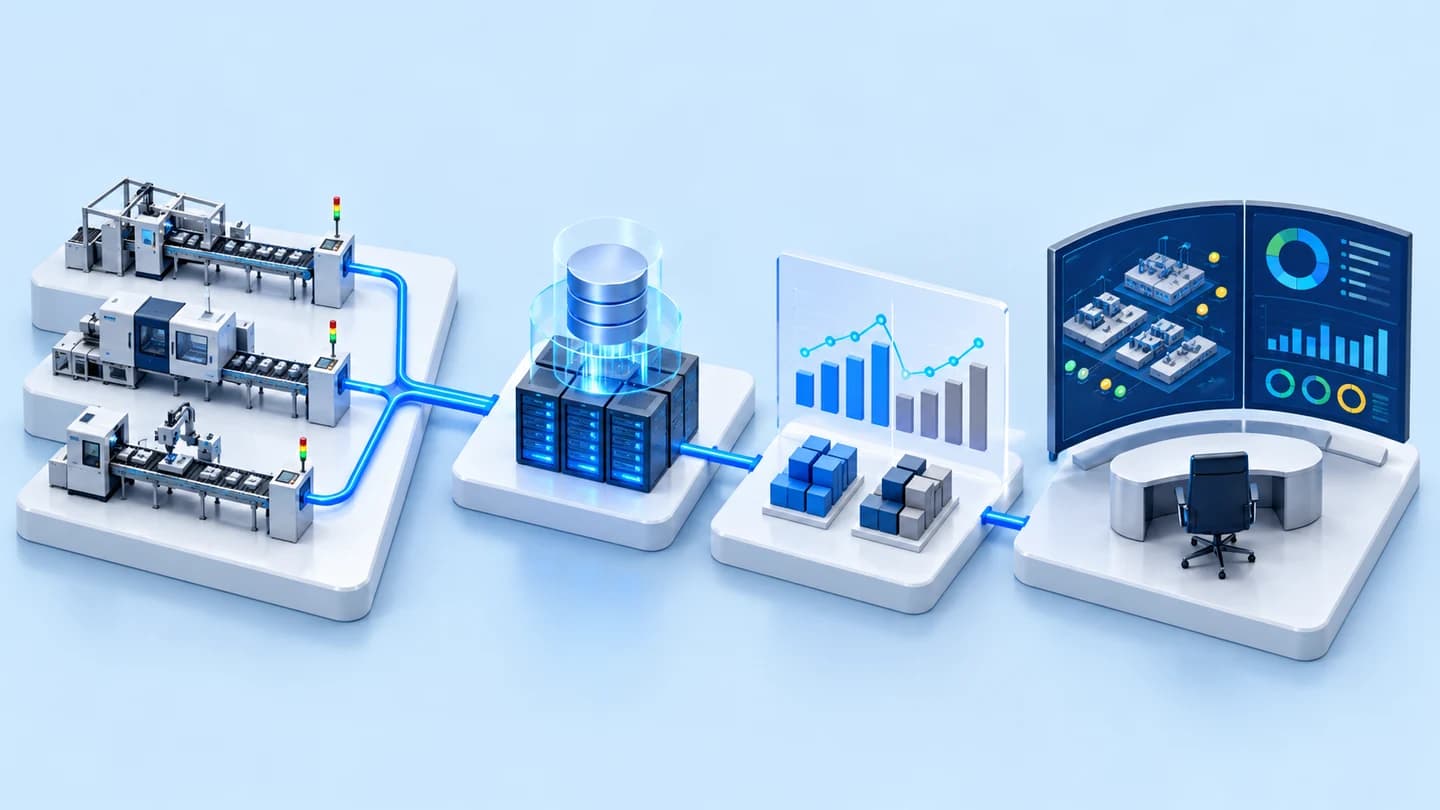





OCR camera system that reads component reel labels and prints barcode stickers for an electronics factory
Customer: Japanese-affiliated electronics manufacturer
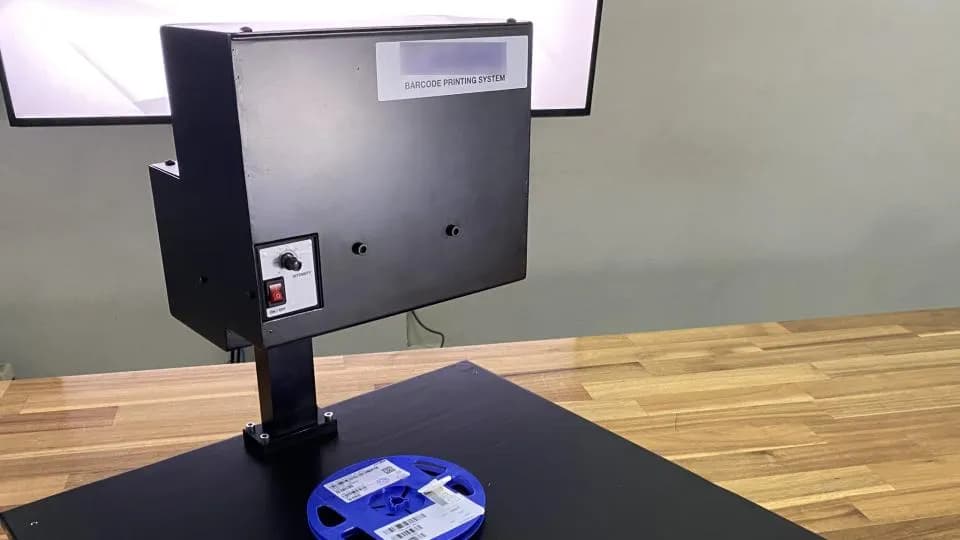
Barcode Printing System is a camera station that reads labels on electronic component reels with OCR (reading text from images), compares them with the factory's CSV master data file, and prints barcode stickers to the factory's form, so users do not have to key in the codes from the label themselves. We delivered this system to an electronics factory in 2021, maintained it in 2022 and upgraded the software on site in 2026.
- Industry
- Electronics
- Year
- 2021–2022, 2026
- Scope of work
- System analysis, development of the screens and Vision/OCR software, testing at our company and on site, documentation and manuals, plus supply of 1 Machine Vision camera station (a camera system and image inspection software), followed by system maintenance in 2022 and an on-site software upgrade in 2026 to support a new operating system
- Duration
- Jun–Oct 2021 (from the purchase order to testing against the acceptance checklist)
Summary
- Barcode Printing System is a camera station that reads labels on electronic component reels with OCR (reading text from images) and prints barcode stickers to the factory's form, so users do not have to key in the codes from the label themselves.
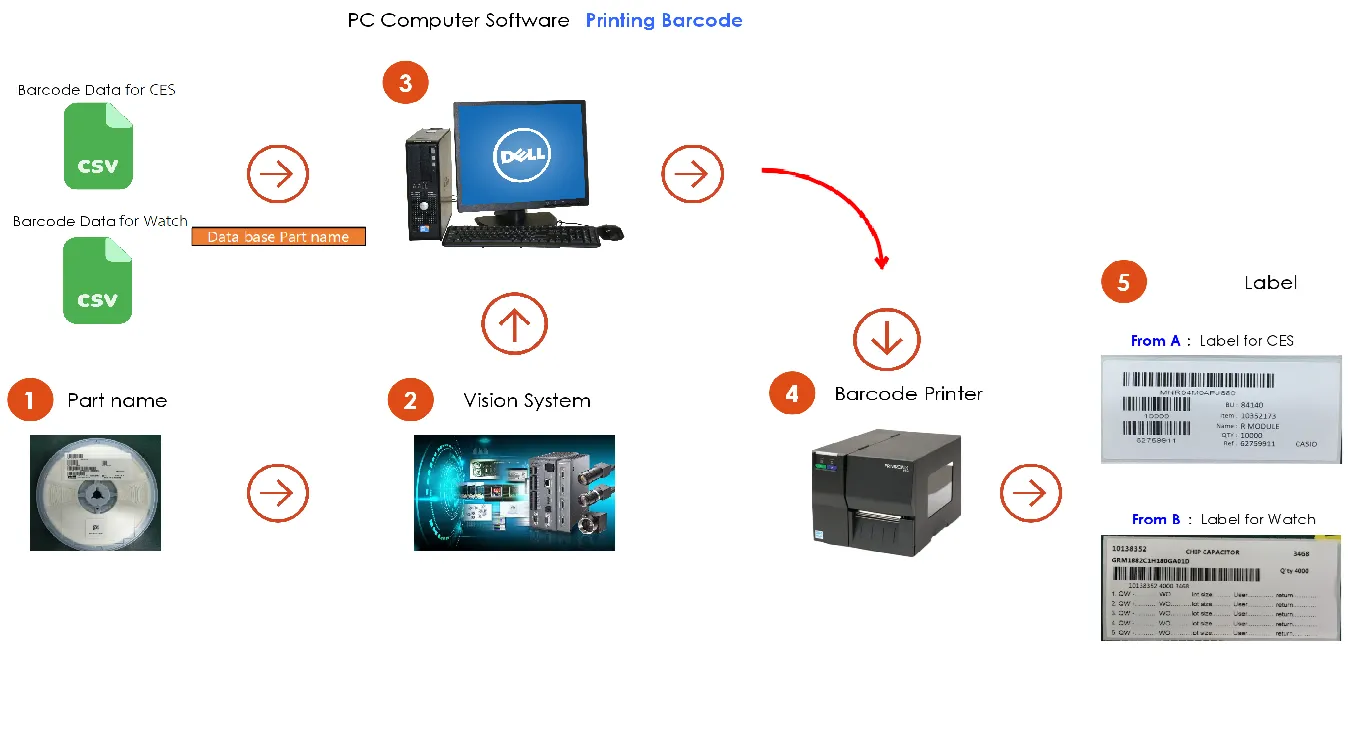
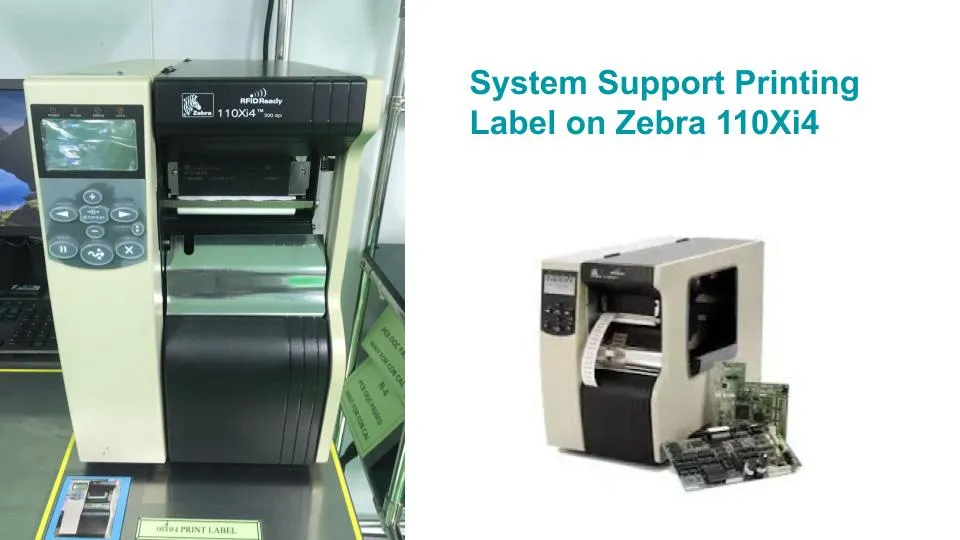
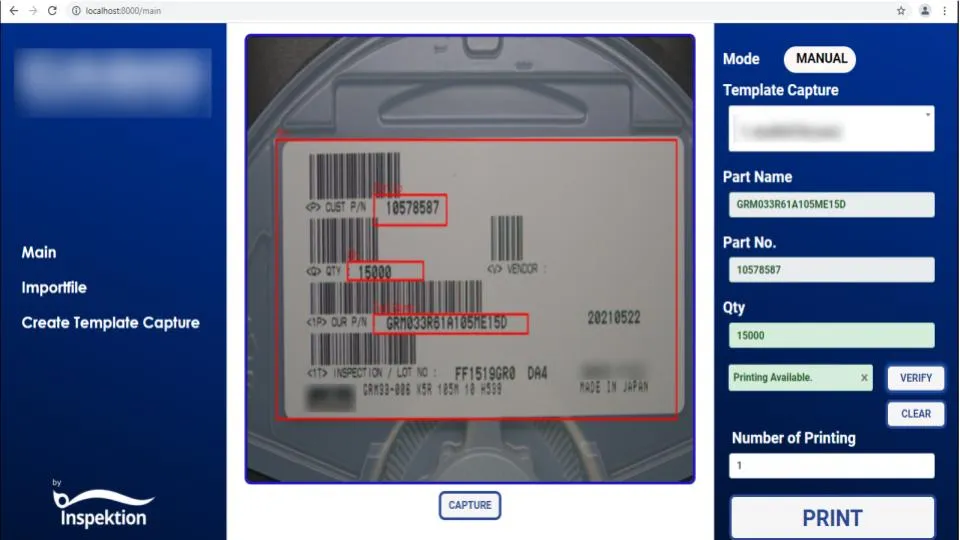
- The system reads Part Name, Part No. and Qty from the label, compares them with the factory's CSV master data file, and sends the print job to the Zebra 110Xi4 barcode printer.
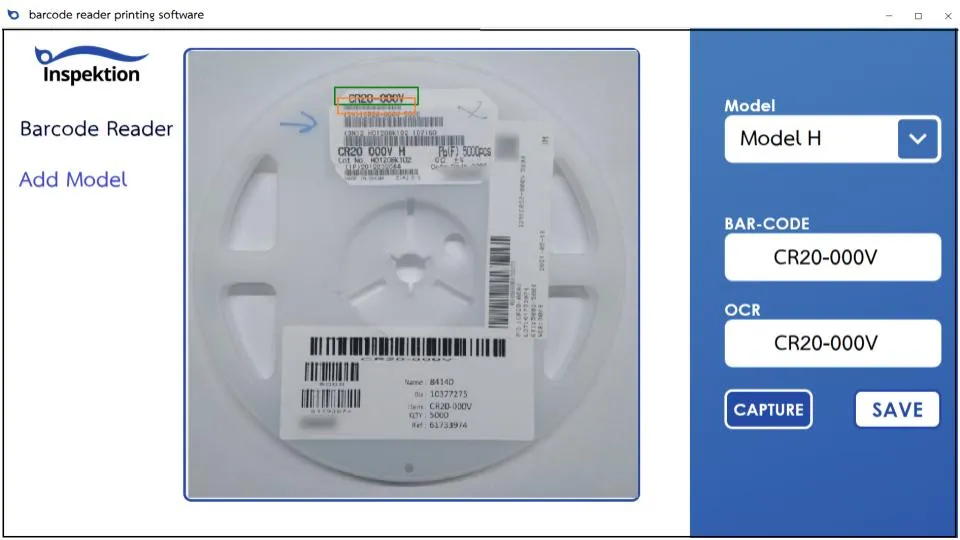
- The system has an Auto mode that reads with the camera, a Manual mode in which the Part Name is entered by hand, and a Create Template page for adding label models from new component manufacturers.
- The customer tested the system against the delivery test list in October 2021. Manual mode worked normally, and the machine went into live use the same month.
- After delivery, the customer ordered system maintenance in 2022, and in 2026 we upgraded the software on site to run on a newer operating system.
The on-site brief
Electronic components arrive at the factory on reels carrying labels from several component manufacturers' brands, and each brand places the code and quantity in a different position. The factory has to print barcode stickers in its own 2 forms, using data from its master data file. The customer wanted the system to read the code from the existing label and print the sticker, to avoid re-entering data and reduce the chance of keying errors.
What we did
We developed the Barcode Printing System software on Windows 10, paired with 1 Machine Vision camera station that uses a Basler ace USB 3.0 camera and a hand switch/foot switch to trigger image capture. The system uses OCR to read Part Name, Part No. and Qty from the label, compares them with the CSV master data file, and sends the print job to the Zebra 110Xi4 barcode printer. If the camera is not used, the user can switch to Manual mode and enter the Part Name by hand.
- Basler camera captures the reel labelPress the hand switch or foot switch
- OCR reads Part Name / Part No. / QtyUsing the position frames for each label model
- Compare with the CSV master data file
- Arrange the data on the sticker form2 factory forms
- Print with Zebra 110Xi4
Results
The customer tested the system against the delivery test list (Exit Criteria) in October 2021. Manual mode worked normally, and the machine went into live use the same month. For Auto mode, we continued to adjust the reading in line with the customer's suggestions. The customer then ordered system maintenance in 2022 and a software upgrade in 2026 so that it would run on the machine's newer operating system.
How the brief came about
The brief for this case was to print the factory's barcode stickers from the labels on component reels, without anyone having to read the code and key it into the printing program by hand. The customer is an electronics factory that receives components on reels from several component manufacturers' brands. Before the components are used, the factory has to apply barcode stickers in its own 2 forms.
Each component manufacturer's brand places the code and quantity in a different position on its labels, while the information to be printed on the sticker is in the factory's master data file. If people had to read the label and key in the code for every reel, the work would be slow and there would be a chance of keying errors. The customer therefore wanted the system to read the code from the existing label, match it with the master data file and state the number of stickers to print.
What is OCR?
OCR (Optical Character Recognition) means reading text from images and converting it into text that a computer can use. In this case, OCR reads the part codes and quantities printed on the component manufacturers' labels, so that people do not have to read them and type the codes into the machine themselves.
Requirements and constraints
The system has to read several label formats, and it must be able to print even when some label models cannot yet be read automatically. The main requirements and constraints are as follows.
- Read labels from several component manufacturers' brands, each of which places its text in a different position, so the reading position frames have to be set separately for each label model.
- Always read the quantity (Qty) from the actual label, not from the file, because parts with the same code may come in different quantities.
- Match the data with the CSV master data file (a data table file) imported into the system, with separate files for each of the 2 sticker forms.
- Send print jobs to the Zebra 110Xi4 barcode printer. The software runs on a Windows 10 computer and is developed in Python.
- A Manual mode for printing stickers without the camera, which has been a requirement since the project proposal.
Why the system reads the existing label and then pulls data from the master data file
The system reads the existing label because the part's code and quantity are already printed on the manufacturer's label, while the information the factory wants on the sticker is in its master data file. If OCR can read either Part Name or Part No., the system pulls the other field from the file. The part codes on the sticker therefore come from the same master data file every time.
The user's role is to check the data on screen and press print, rather than typing in the codes field by field. The project requirements also included a Manual mode for printing without the camera. This mode allows stickers to be printed for labels that the system cannot yet read automatically.
- 1
Select the label model and place the reel under the camera
The user selects the label model (Model) that matches the component's brand, places the reel on the stand, then presses the hand switch, the foot switch, the on-screen Capture button or the Enter key to trigger image capture.
- 2
OCR reads the text within the set frames
The Basler ace USB 3.0 camera captures an image of the label. The system uses OCR to read Part Name, Part No. and Qty only within the position frames set for that label model.
- 3
Compare with the CSV master data file
The system looks for matching data in the imported CSV master data file. If it reads either Part Name or Part No., it pulls the other field from the file and displays it.
- 4
Check the data and print
The screen shows the data to be printed and a field for the number of stickers. The user checks it and presses the print button. The system arranges the data on the sticker form and sends it to the Zebra 110Xi4 barcode printer.
- 5
Add a label model when there is a new component manufacturer
The Create Template page is used to name the label model, define the position frame for each field and select the barcode type to be printed. Training mode is used to collect label images for further OCR model training.
Deliverables
We delivered 1 Machine Vision camera station (a camera system and image inspection software), together with the Barcode Printing System software and services ranging from system analysis to the user manual.
- Camera station: Basler ace USB 3.0 camera, lens, lighting set with controller, station frame with cover, and Hand/Foot Switch for triggering image capture
- Software on Windows 10: Auto mode, Manual mode, CSV file import, Create Template page, label model editing and deletion, and Training mode
- Printing: arranging the data on the factory's 2 sticker forms and sending it to the Zebra 110Xi4 barcode printer
- Services: system analysis, development of the screens and Vision/OCR software, testing at our company and on site, documentation and manuals
How has this system been supported since delivery?
After delivery in 2021, the customer placed 2 further orders for this system: system maintenance in 2022 and an on-site software upgrade in 2026. The upgrade enabled the software to run on the machine's newer operating system.
- 2021: system analysis, software development, camera station delivery, and testing against the delivery test list together with the customer
- 2022: Machine Vision system maintenance
- 2026: on-site software upgrade to run on the machine's newer operating system
Confirmed results from delivery testing
The confirmed results come from the delivery testing in October 2021. The delivery test list (Exit Criteria) covered Auto mode, Manual mode, CSV file import, the Create Template page, label model editing, and triggering image capture with the hand switch and foot switch. The customer tested Manual mode and it worked normally, and the machine went into live use from the middle of the same month.
The factory's 2 sticker forms are used for 2 groups of parts. As of late 2021, we had trained the OCR model for the labels of the first group and were still adjusting Auto mode. The model had not yet been trained for the labels of the second group, so their stickers were printed through Manual mode.
This case has no measured read-accuracy figure, so we do not show an OCR accuracy figure. The confirmed results are that the machine is in live use, and that the customer ordered system maintenance in 2022 and a software upgrade in 2026.
What we learned
Reading labels from multiple manufacturers requires a fallback way to print, and a clear distinction between which data is read from the label and which is pulled from the file. The principles from this work are as follows.
- An OCR system that reads labels from multiple manufacturers needs a fallback way to print from day one. Each label model needs its own position frames and its own model training. Manual mode lets the factory start live use while Auto mode is still being adjusted.
- Read from the label only the code used for lookup and the data that varies from reel to reel, such as quantity, and pull the other sticker data from the factory's master data file. If either code can be read, the system can pull the other code from the file.
- Once the machine is in live use, program changes have to be scheduled with the site in advance, and long-term support has to be planned, covering both barcode printer settings and software upgrades when the operating system changes.
How this approach can apply to your factory
If your factory needs to apply its own barcode stickers to incoming parts and already has a master data file for those parts, you can use the same approach as this case: read the code from the original label, match it against the master data file, then print. What needs adapting depends on your label format and printer.
Reusable parts and parts that need adapting
| System part | Reusable | Needs adapting when |
|---|---|---|
| Image capture | Camera station with lighting set, and a hand/foot switch to trigger image capture | If parts do not arrive on reels, or labels differ greatly in size from this case, camera position and lighting must be retested with real labels |
| Label reading | Setting the read-position frames for each label type on the Create Template page | If there is a new part manufacturer, a new label type must be created and images collected to train the OCR model |
| Data matching | Searching the CSV master data file by Part Name or Part No. | If your master data is in another system rather than a CSV file, the data import method must be agreed first |
| Printing | Arranging the data on the sticker layout and sending it to print | If you use a different barcode printer model or a different sticker layout, the model must be checked and the settings reconfigured |
| Backup printing route | Manual mode, in which the Part Name is entered by hand | No adaptation needed; used as the printing route while the model for a new label is being trained |
- Prepare real label samples from every brand of part manufacturer you use, because each label format must be configured and its model trained separately.
- Define clearly which fields must be read from the real label and which are pulled from the master data file.
- Agree who looks after the CSV master data file and how new files are brought into the system.
- Allow time for testing with real labels on site, and plan how the system will be looked after once it goes live.
Start with sample labels
Collect real labels from each brand along with a sample master data file. We use these two things to assess which labels can be read automatically and which should use the manual data entry mode.
Read more
- Custom inspection and control system development service
- Annual system care and maintenance service
- Case: Machine Vision Counter, camera-based workpiece counting
- Prototype case: Edge AI reading water meter dials
- Article on choosing an AI inspection camera: off-the-shelf Task Cam or custom-built Machine Vision
Technology used
Frequently Asked Questions
What does the system read from the label?
The system uses OCR to read Part Name (name of the part), Part No. (part number) and Qty (quantity) from the label on the component reel, following the position frames set for each label type, then checks them against the factory's CSV master data file before printing the sticker.
What should be done when there is a label from a new part manufacturer?
A new label type can be added on the Create Template page by naming the type and defining the position frame for each field, then using Training mode to collect images to train the OCR model. In the meantime, Manual mode can be used to enter the Part Name and print stickers.
If the camera cannot read the label, can stickers still be printed?
Yes. In Manual mode the user enters the Part Name and presses Enter; the system retrieves the barcode data from the master data file, and there is a field for entering the quantity by hand.
Which barcode printer models does it work with?
In this case, the system sends print jobs to a Zebra 110Xi4 barcode printer. If your factory uses a different printer model, we need to check the printer model and the sticker layout on site first.
What are the price and timeframe?
There is no fixed price, because a system of this kind is designed around each factory's labels and data files. We estimate the price and timeframe from the number of label types, the sticker layouts and the site conditions. Contact us to request a quotation.