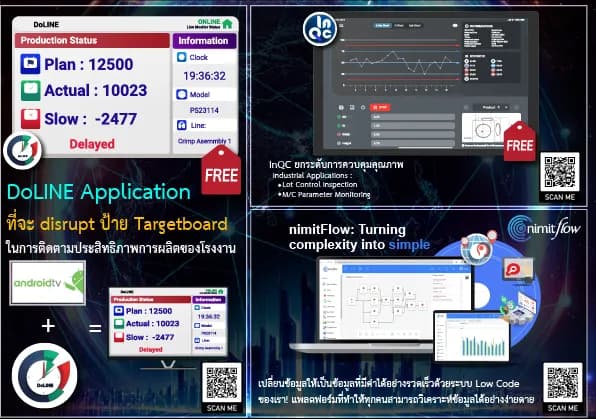





Step-by-step configuration instructions for the DoLINE Target Board
Inspektion engineering team · Published 7 September 2026 · Last updated 14 October 2026
Rewritten from the original article, first published October 2024
DoLINE Setup Guide for displaying production plan vs actual on an Android screen, reference manual B.E. 2567 edition, with items to check with the team before installing the current version
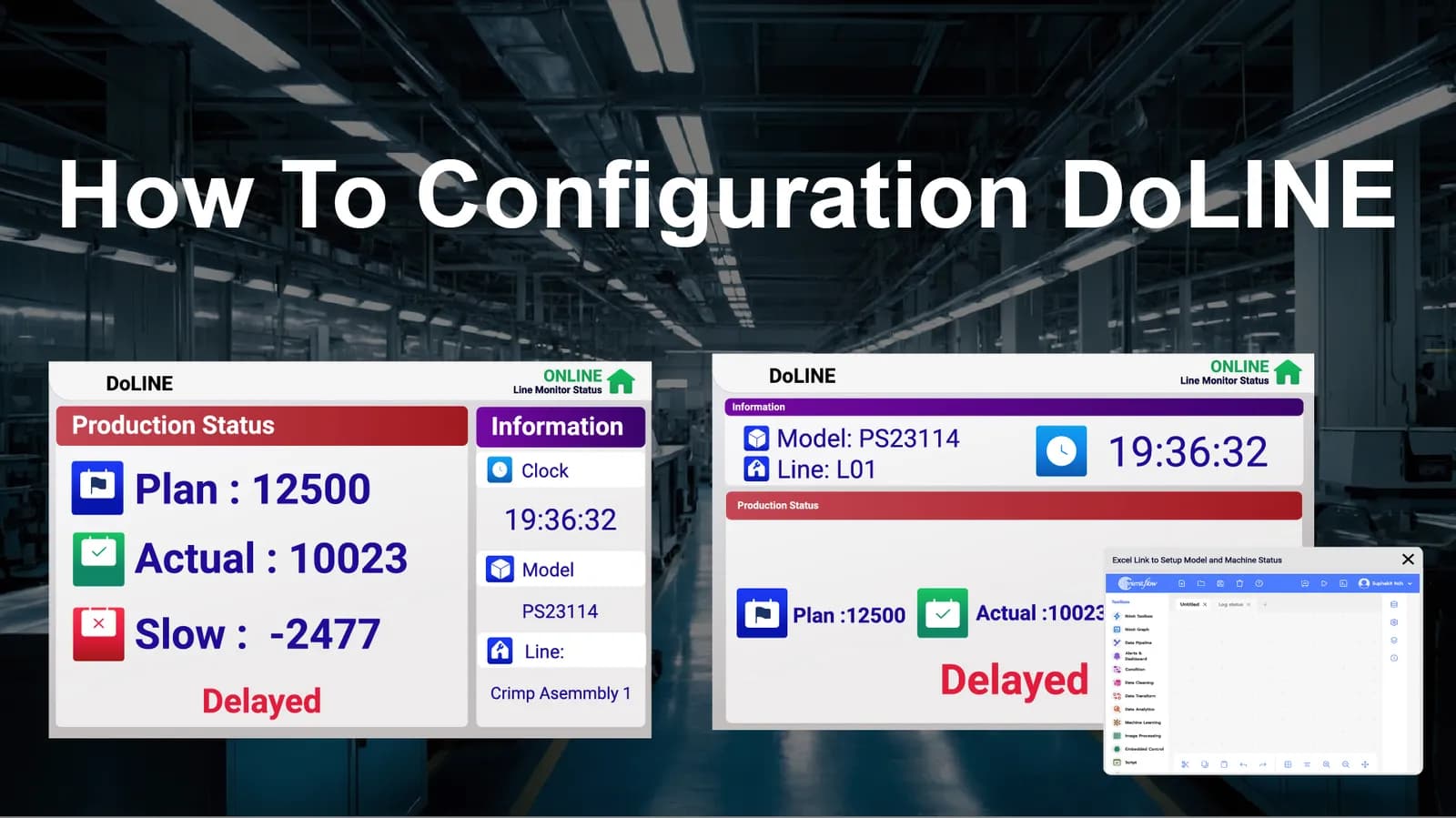 Image: Inspektion
Summary
- Request the DoLINE installation file and check your Android device model with the team before you start
- You need to register a separate nimitFlow account to configure the Target Board through the StationSetting file
- Upload the 2 settings files (StationSetting.nim and station_setting.csv), then run the Flow to start using them
- Connect the push button (Hand Switch) so that shop-floor staff can record output without typing
The following setup steps are based on the 2024 manual. The screens and settings files in the current version may differ. Please request the latest manual and files from the team before installing.
What to prepare before you start
Before you begin setup, prepare your device, an Android tablet or display that can connect to the internet, and an email address for registering accounts on both the DoLINE and nimitFlow sides.
Step 1 — Install and register DoLINE
- 1
Request the installation file
Request the latest APK file and installation instructions from the team, and tell them which Android device model you will use.
- 2
Check the app version
Check that the installation file came from the team and is a version that supports your device.
- 3
Install the app
Tap to install the DoLINE application and wait until the installation completes.
- 4
Sign up
Press Create One, then enter your user details (Username, Email, Password) and organisation details (full name, company name, country, address). Next, accept the terms of use (I acceptance term of services) and confirm.
Step 2 — Start using the default Target Board
- 1
Log in
Log in with the account you registered.
- 2
Select a Template
Select the Target Board Template for basic use.
- 3
Activate
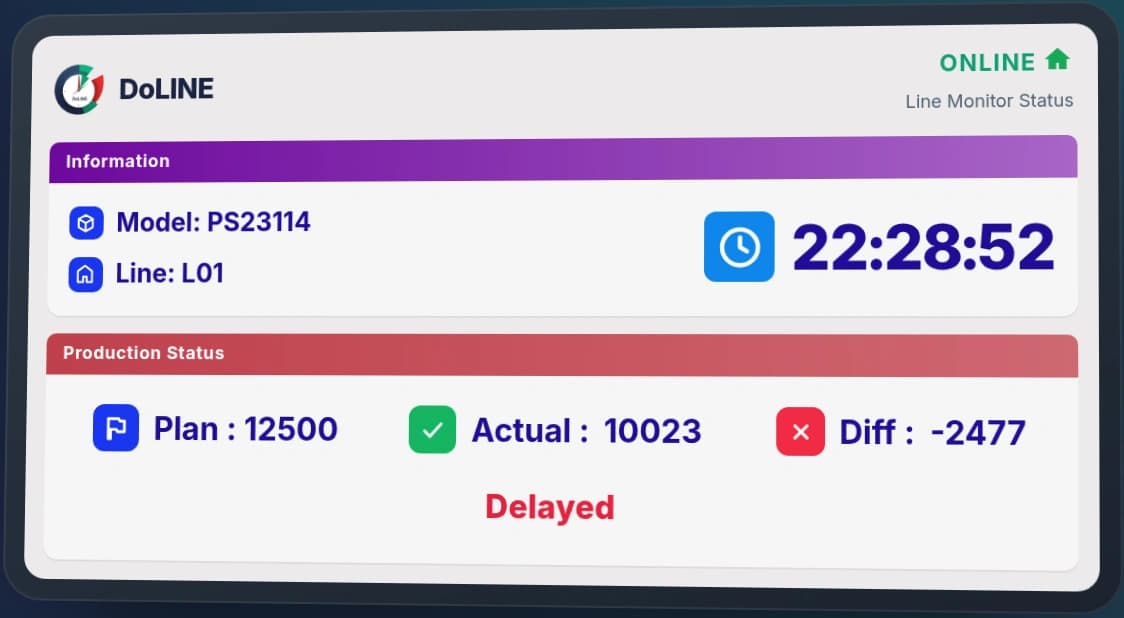
Press Open to start using the Monitor Target Board.
Step 3 — Configure the Target Board through nimitFlow
For a configuration that can be adapted to actual site conditions (such as connecting Plan/Actual data from your own production line), you need to register a separate nimitFlow account.
- 1
Register for nimitFlow
Go to the nimitFlow web app and press Sign up, then enter your first name, surname, email address and password (if you do not yet have an account, you can ask the team for the latest access link).
- 2
Verify your email
Verify your account through the email sent by the system, then log in.
- 3
Prepare the settings files
Download the StationSetting.nim file from the team (the original file is on Google Drive — if the original link no longer works, ask the team for the file directly), then create a station_setting.csv file based on your own production line details.
- 4
Upload and run the Flow
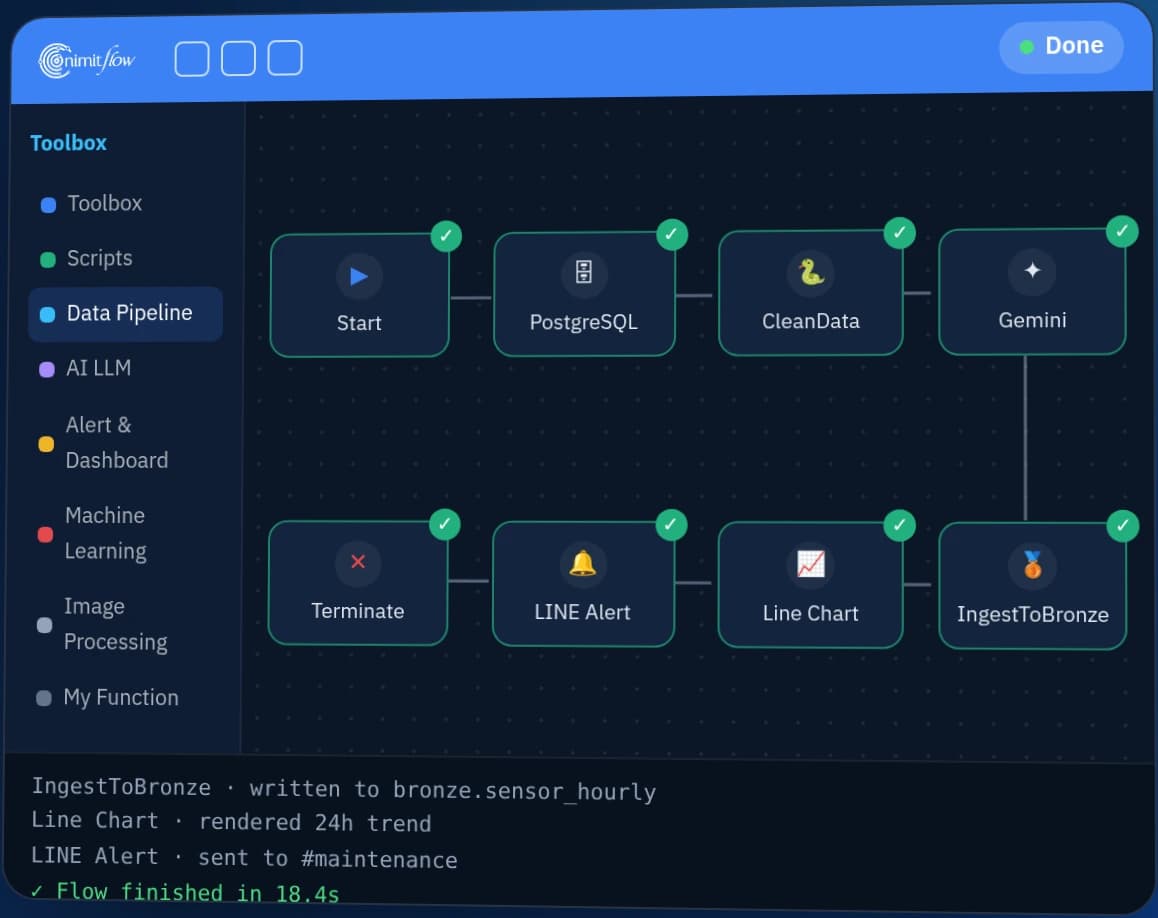
Upload both files using the +Add button on nimitFlow, then run the Flow named StationSetting to start using your customised settings.
Step 4 — Connect the shop-floor push button (Hand Switch)
Once the Flow is set up, connect the Hand Switch device so that shop-floor staff can press it to record output immediately without typing, which keeps Plan vs Actual data updated in real time on the screen.
Frequently Asked Questions
What should I do if I cannot find the StationSetting.nim file?
The original file link may change over time. Contact the team directly to request the latest file.
Can I use DoLINE without connecting it to nimitFlow?
Yes — you can use the default Target Board Template straight away by following Step 2, but customising data connections for your specific site is more limited than configuring through nimitFlow.
Do I need to buy the Hand Switch separately?
You can ask the team for details of the equipment and its connection, or see related products in the [Replacement parts available for shipment](/shop) category.
References
- [1]
DoLINE product information — Inspektion
- [2]
nimitFlow platform information — Inspektion
- [3]
Low-code development platform — Wikipedia