





LearningCam / CTC-102 Series
Counter CamSee the parts passing the camera Track counts at the line
Turn conveyor or workstation images into counts with an Edge AI camera with onboard processing and a built-in web app. View results, configure settings and change models in a browser, without a separate processing PC.
Same camera price as Inspection Cam. Variant, accessories, custom models and installation are confirmed in the quotation.
Count parts in motion or at rest?
Match the mode to the production cycle, then set the detection area and model for the actual parts.
Continuous
Continuous conveyor counting
Detect parts moving through the counting area. Suitable for conveyors, slide rails and continuously fed parts.
Cover the path of the parts with the counting area and test at the actual conveyor speed.
Snapshot
Count each batch once parts are in position
Capture and process an image when parts are positioned or a Trigger is received. Suitable for assembly tables, trays and inspection points where parts pause briefly.
Time the capture so every part is in position and fully visible before counting.
Where Counter Cam fits
Start with what the camera can see and the work cycle, then choose the model and counting method.
Count parts passing on a conveyor
Track quantities passing a counting point, with lanes and spacing arranged so each part is clearly visible.
Count parts in trays or at placement points
Use Snapshot when parts are stationary and fully in view. Test with the actual layout and part types.
Count separately by part type
Prepare the model and samples for each type before using counts grouped by the configured Part Number.
See detection and counts in a demo
These test clips show the camera view and onscreen results. Values are demo data; performance with your parts must be tested under your site conditions.
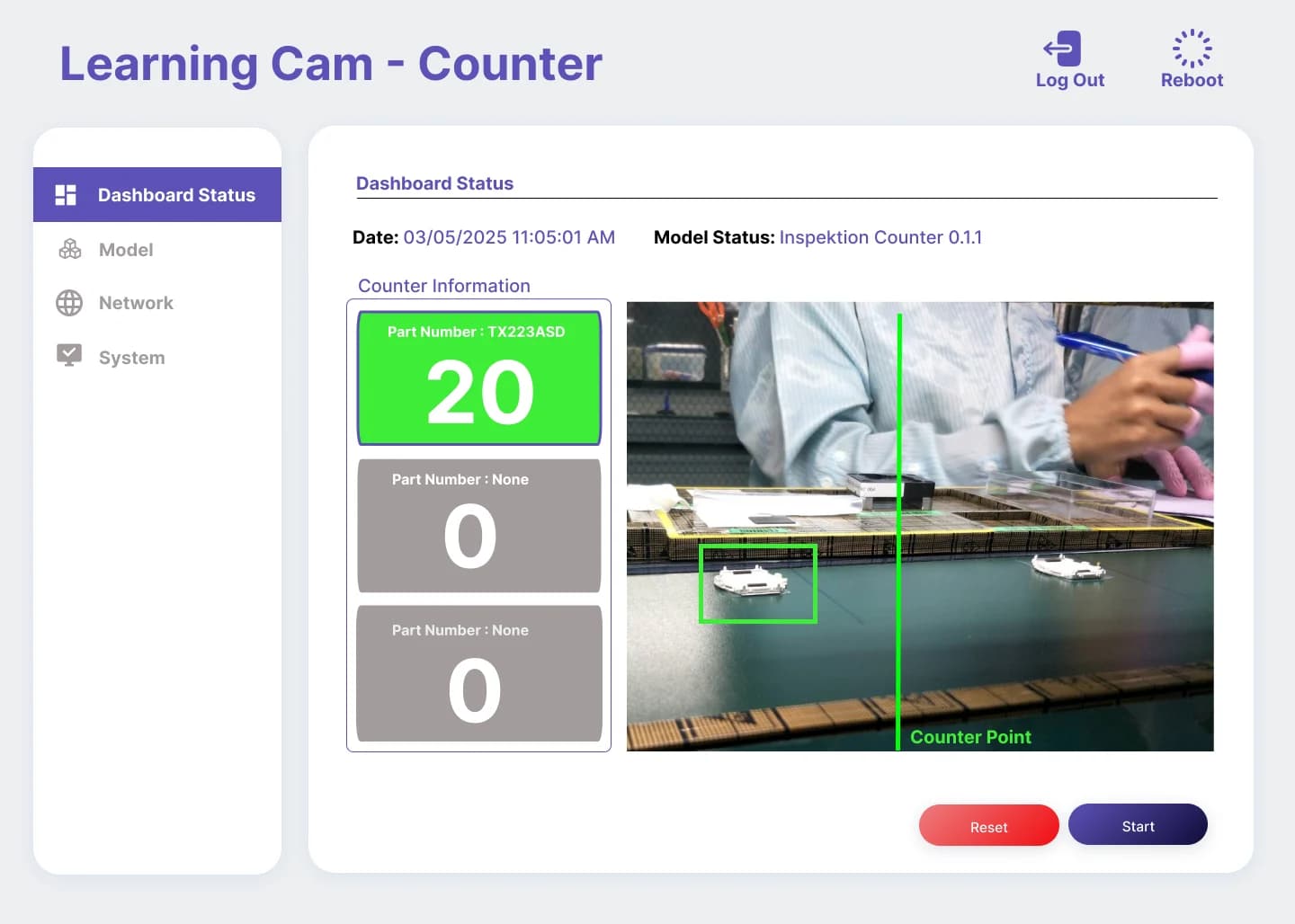
As parts pass, the onscreen count updates
See the overhead camera, detection boxes and Dashboard count in one clip.
Video description
The camera looks down at washers on a conveyor. The software draws detection boxes around them and increases the count as parts pass through the counting area.
Locate objects within the same image
Detection of two round objects, cropped to the detection view from a Learning Cam clip.
Video description
Green regions overlay two round objects to show the areas detected by the model.
When parts change, start with real data
Capture site images, update the model and validate results before production. Repeat this workflow when the part type or variant changes.
- 01
Capture images and video
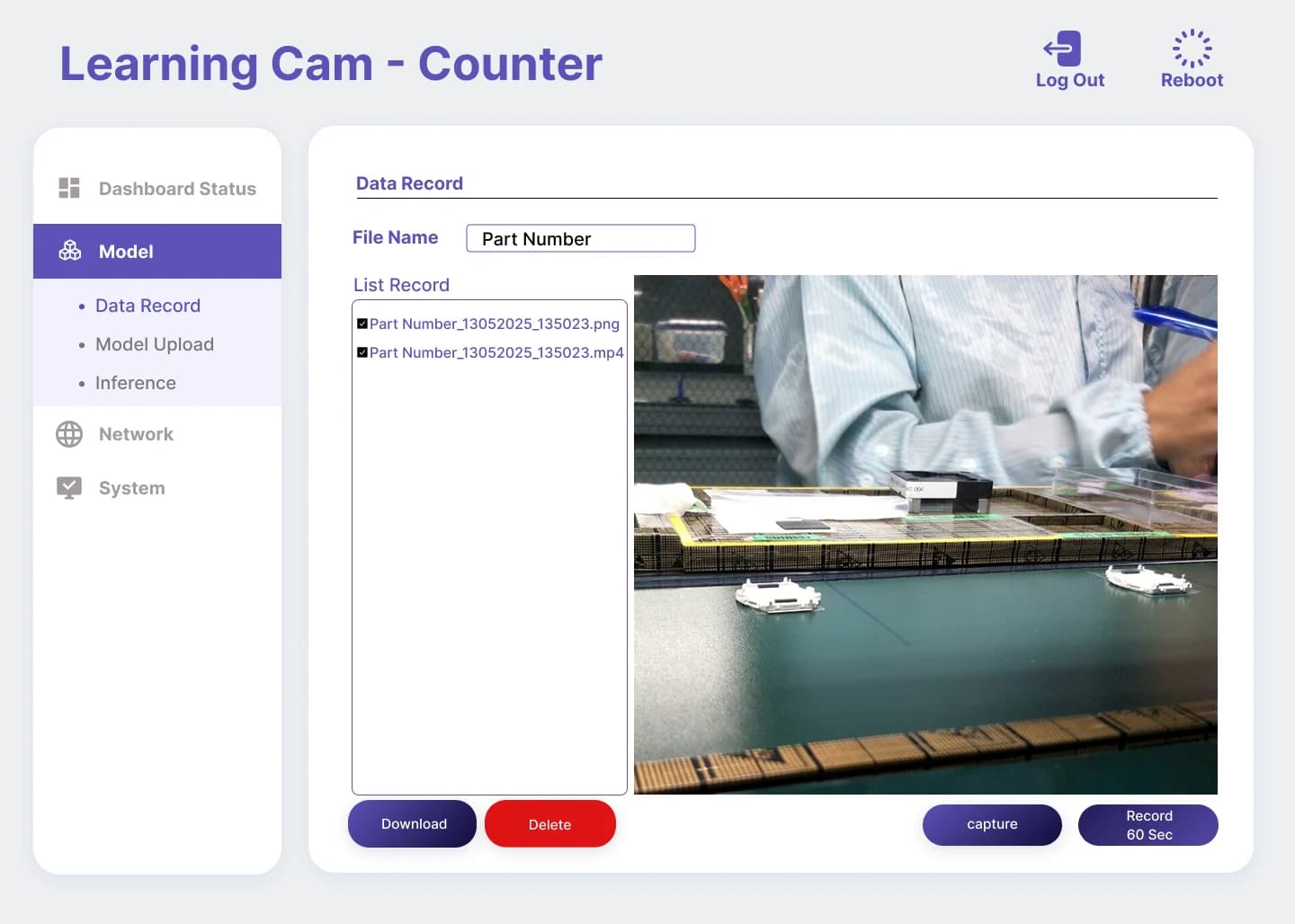
Use Data Record to capture real lighting, camera angles and parts as training data for the model.
- 02
Upload a model for the task
Upload and select a model trained for the part through the camera web app. Model training takes place outside the camera.
- 03
Validate before running the line
Use Model Validation on recorded videos and review the accuracy report. Then compare counts with actual quantities at operating speed.
Send counts to factory systems
Read results and control the camera from external systems, with historical records configured for the project.
Counter Cam
Image → AI model → Count
REST API / Modbus TCP / HTTP
Two-way results and commands
PLC / SCADA / MES
Display counts or use them in the process
Start / stop counting · Reset count · Change model · Trigger Snapshot
FTP → CSV and video
Send files to a designated server for historical records and review.
Agree on commands, data formats and access permissions with the systems team. Advanced features and additional licenses are confirmed in the quoted scope.
Choose Basic or Pro for the installation point
CTC-102 Series specifications from the Counter Cam Product Data Sheet
| Features | Basic · Wi-Fi 6 | Pro · Ethernet |
|---|---|---|
| Image Sensor | 1/3″ CMOS | SONY 1/2.8″ IMX307 · 1080P / WDR |
| Resolutions supported by the software | 320 × 240 / 640 × 480 / 800 × 600 | 320 × 240 / 640 × 480 / 800 × 600 |
| CPU | 1.0 GHz | Quad-Core ARM Cortex-A53 · 1.6 GHz |
| AI Accelerator (NPU) | 1.0 TOPS | 3.0 TOPS |
| RAM | 256 MB DDR3 | 2 GB DDR4 |
| Storage | 8 GB | 64 GB eMMC |
| Network | Wi-Fi 6 | RJ45 Ethernet 10/100 Mbps |
| Power supply | 5V DC @ 500 mA | 5V DC @ < 1A |
| Housing dimensions (width × height × depth) | 47 × 50 × 47 mm, excluding lens and antenna | 50 × 50 × 50 mm, excluding lens |
| Lens | Replaceable | Replaceable |
| Protection rating | IP50 · Not waterproof | IP50 · Not waterproof |
| Software | Counter SW On-Board | Counter SW On-Board |
IP50 is not waterproof. Install away from water spray. Choose the lens and lighting for the camera distance and part size. Counting speed and results depend on the model and site conditions.
Install and start Counter Cam in 5 steps
Prepare the camera, lens, mount, power supply, network and a device with a browser. Confirm included items in the quotation.
- 01
Mount the camera and set the lighting
Keep every part visible within the detection area. Prevent vibration and reflections that obscure parts.
- 02
Connect power and network
Supply 5V DC as specified for the model. Use Wi-Fi 6 for Basic or LAN through a Router / Switch for Pro.
- 03
Open the web app and select a model
Open the camera address in a browser on the same network. Use the account provided at handover, then select or upload the model for the part.
- 04
Set the mode and counting area
Choose Continuous for passing parts or Snapshot for batch counting. Match the area and timing to the actual movement.
- 05
Verify counts before integration
Test against known quantities and check missed and duplicate counts. Then test start, stop, reset and result transmission within the agreed scope before production use.
How to test suitability for your line
Agree on acceptance criteria before testing. Use parts and production conditions representative of the real work.
Establish a reference count
Record actual and camera counts by run, part type and speed. Check undercounts and overcounts: matching totals can still hide counting errors.
Test difficult counting conditions
Test small gaps, different colors, lighting changes and conveyor stops or starts within the agreed scope. Save miscounted images for diagnosis.
Check ongoing operation
Define shift startup, count resets, model changes and network failure procedures, with named owners for checking results and backing up data according to the installed system.
No single speed or accuracy figure applies to every part. Confirm performance with your project's test results.
Clear camera pricing, configured for your site
The core package is a Counter Cam with Counter SW On-Board. Choose CTC-102-BASIC or CTC-102-PRO to suit the network and processing requirements.
Check the quotation for LAN cables, 5V adapters, mounts, lenses, custom models, additional licenses and installation services, including their terms.
Inspektion advises on lens selection, installation design, user training and technical support.
Same camera price as Inspection Cam. Variant, accessories, custom models and installation are confirmed in the quotation.
Questions before choosing Counter Cam
How does Counter Cam differ from Inspection Cam?
Counter Cam focuses on part quantities, continuously or by batch. Inspection Cam focuses on quality, such as component completeness and OK/NG results. The Counter Cam document also lists Total Count, OK, NG and Yield displays depending on the model. Choose by task and test with real parts.
Do I need a PC or a constant internet connection?
AI processing and the web app run in the camera, without a separate processing PC. View and configure it in a browser on iOS, Android, Windows or Linux on the same network. Outbound data transfer depends on the configured destination.
Do new parts require a new camera?
You can upload and switch AI models. Capture all colors and variations of the new parts that will be used, then train or update the model and test before changing the job.
Is the price the same as Inspection Cam?
Yes. Both display a camera price of THB 46,500 each. Variant, equipment, tax, warranty, additional licenses, custom models and installation are confirmed in the quotation.
Start a counting trial with your real parts
Prepare images or clips, part types and sizes, conveyor speed or cycle time, and the system that needs the counts. Our team will help define the installation point and test scope.