




Choosing the Right AI Server for Your Workload: From Small Machines to Multi-GPU Systems
Inspektion engineering team · Published 14 November 2026 · Last updated 14 November 2026
Guide to choosing AI servers small to large. Compare DGX Spark vs workstations. Explains GPU, VRAM, RAM, CPU, PCIe, storage, power, and concurrent users.
Summary
- Start with your workload and model, then calculate memory requirements before choosing a GPU — don't start from machine price alone.
- The DGX Spark's 128 GB of unified memory is not discrete-card VRAM, and you cannot add GPUs the way you would in a PC.
- Multiple GPUs require software and a topology that support them; VRAM is not pooled automatically.
- User capacity must be measured from concurrent requests, context length, and response time — not set from GPU size as a single figure.
- Check RAM, storage, PCIe, network, power, and heat across the whole system, and run tests before you order.
Start with the workload, not the graphics card name
Choosing an AI server is similar to building a PC, but you have to consider model size, data transfer speed, and how many jobs happen at the same time. A machine that can load a model may still not respond fast enough for users, and adding GPUs will not help much if the data is bottlenecked at storage, the CPU, or the network. This article divides machines into small, medium, and large based on usage patterns — these are not manufacturer size standards.
- Define the workload: using an existing model, fine-tuning an existing model, or training a new model from scratch.
- Define the data types — text, images, video, or multiple types — including prompt length, image resolution, and number of files.
- Define acceptable timing: must answer instantly, jobs can be queued, or processing runs in overnight batches.
- Define people and concurrent jobs: the total number of accounts is not the same as the number of requests the machine is actually processing.
Terms used throughout this article
Inference = using a model to answer or predict; Training = training a model; Fine-tuning = further training from an existing model; VRAM = memory on the GPU; RAM = main memory; Token = the unit of text a model processes, which does not map one-to-one to Thai words. The CPU is the main processor that prepares data and coordinates tasks; the GPU is suited to performing many calculations in parallel. A batch is a group of data processed together. Context is the information a model uses to answer a question. Quantization reduces the bits used to represent model weights to save memory, and output quality must be checked again.
What makes small, medium, and large machines different
Match the machine type to how you will use it
| Size as used in this article | Good starting point for | Advantages | Limitations |
|---|---|---|---|
| Small: DGX Spark | Development, model experimentation, and internal AI workloads whose limits have already been tested | Compact machine with large unified memory and an AI software stack | Cannot add PC-style GPU cards; check Arm64 compatibility and speed against your real workload |
| Medium: PC / Workstation + GPU | Vision work, LLMs, and fine-tuning where you can pick a GPU with enough capacity | You can choose the card, RAM, and SSD within the platform's limits; easier to maintain than multi-node machines | Slots, PCIe lanes, power, and heat limit the number of cards |
| Large: GPU Server / multi-node | Multi-team workloads, large models, or training and serving that must scale | GPU, network, power systems, and data-center-grade maintenance are designed together | Requires space, cooling systems, and a maintenance team; more GPUs are not always proportionally faster |
Chassis size, price, or GPU count alone is not a tested measure of how much workload a machine can handle.
What the DGX Spark was built for
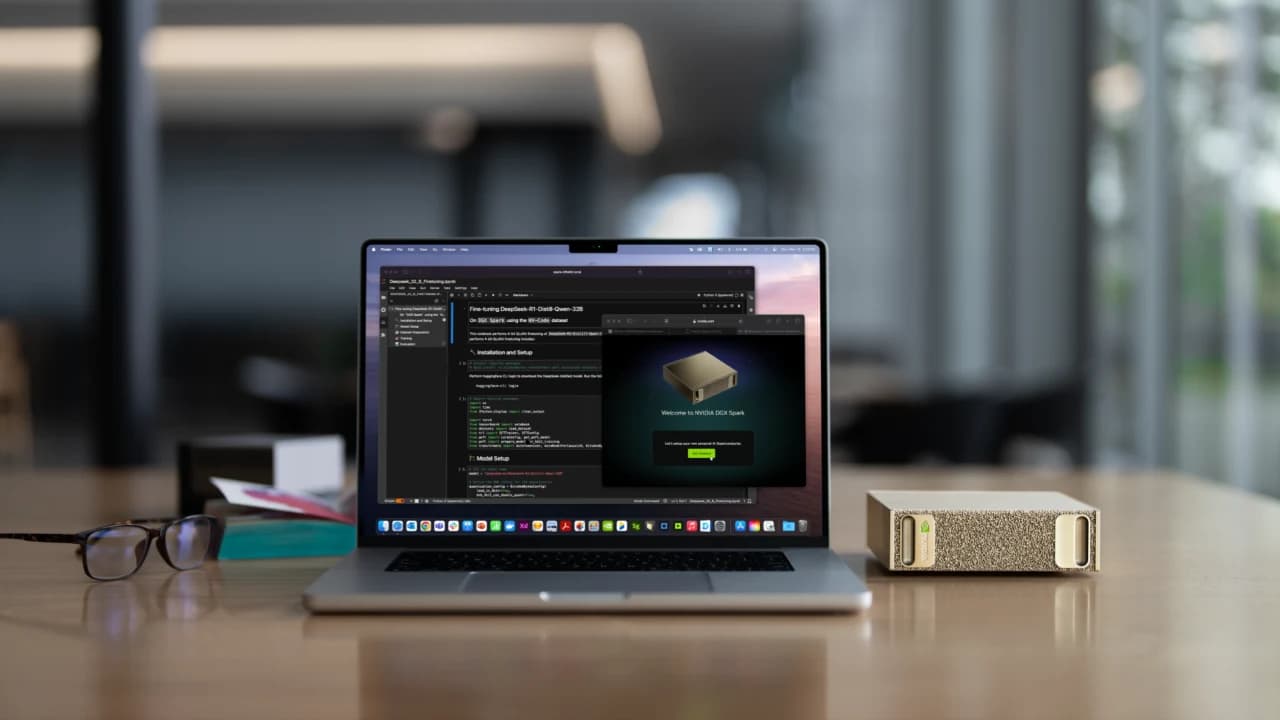
The NVIDIA DGX Spark uses the GB10 Grace Blackwell Superchip with an Arm-based CPU and 128 GB of unified memory shared by CPU/GPU. Its strength is that you can develop, experiment, fine-tune, and deploy models right on your desk without starting out by building a multi-card machine. Its specified memory bandwidth is 273 GB/s, so you need to consider both capacity and speed, and should not read 128 GB as being the same as a card with 128 GB of VRAM [1]
- Suited to LLM experimentation, document-search assistants, AI development work, and in-house model evaluation before scaling up to a larger machine
- Unified memory lets the CPU/GPU use the same space, but the operating system and other programs use this space too, so a full 128 GB is not left available for the model
- You must verify that your framework, container, libraries and add-ons support Arm64 and this GPU model. Not every piece of existing x86 software can be moved over to run on it.
- It is not an automatic answer for serving large numbers of users or for training large models from scratch. You need to measure actual response times and real throughput.
See the small AI Server built on NVIDIA DGX Spark. The approximate starting price of 300,000 THB is the initial budget figure for an Inspektion proposal, not NVIDIA's global retail price. The hardware list, software, installation, taxes, warranty and delivery schedule are confirmed in the quotation.
PCs and workstations: choose a GPU that matches the job
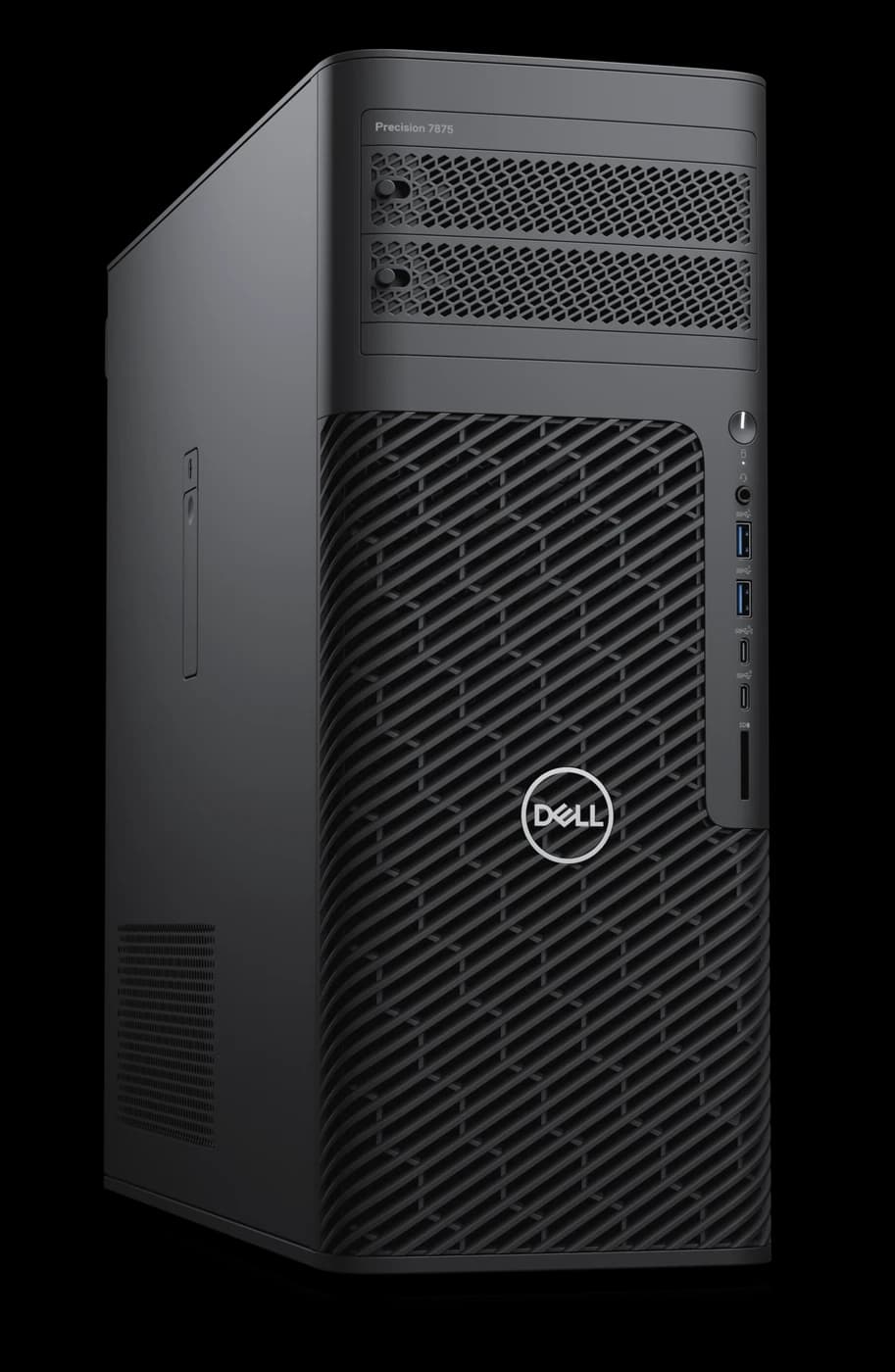
A PC is a good fit when your budget and requirements are already clear. A workstation adds options such as ECC memory, more PCIe lanes and broader hardware support, depending on the model. The differences you need to check are the motherboard, CPU, chassis, power system and the list of components the manufacturer certifies — not simply the word "workstation" in the name, which does not mean any card will fit.
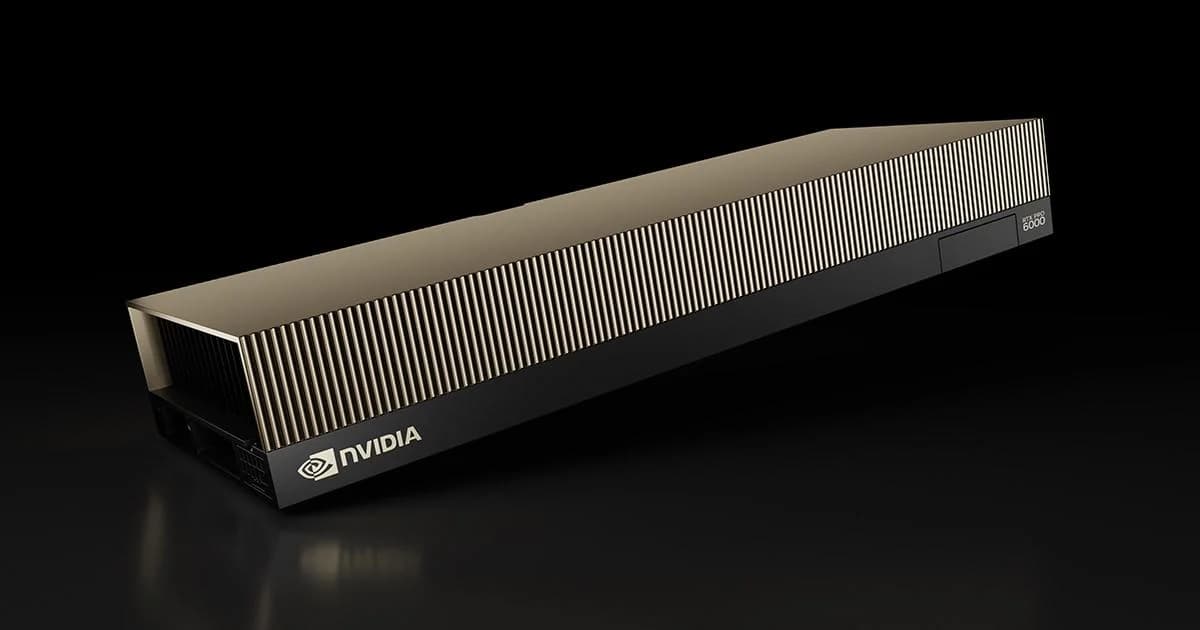
For example, the AI Server Workstation built on the Dell Precision 7875 follows a configuration approach using the NVIDIA RTX PRO 6000 Blackwell Max-Q Workstation Edition, with 96 GB of GDDR7 ECC memory and a 300 W GPU power level, matching the variant Dell lists as supported. The approximate starting price is 700,000 THB. The CPU, RAM, SSD, PSU and scope of service must be confirmed in the quotation. This is not the RTX 6000 Ada, nor the 600 W Workstation variant. [2][3]
Buying the card alone may not be the end of it
Before ordering a GPU, check its length, thickness, how many slots it blocks, the power connectors, airflow, BIOS, operating system and drivers, as well as the warranty terms for the whole machine. A card that physically fits into the slot does not mean the system fully supports it.
Start choosing a GPU from its memory, then look at speed
VRAM is like the GPU's desk: it has to hold the model, temporary data and the work currently in progress. Bandwidth is how fast data can be picked up off that desk. Capacity lets the work fit, but it is not a speed figure. Comparing GPUs requires the same model, the same precision and the same software; do not compare AI TOPS figures measured at different precisions or under different sparsity conditions.
Example GPU families, provided to help you read specifications — not a speed ranking.
| Example family / model | Memory by variant | What to consider it for |
|---|---|---|
| GeForce RTX 5060 Ti | Available in 8 GB and 16 GB variants | Pick the right SKU — model names can be very similar while capacities differ. |
| GeForce RTX 4090 / RTX 5090 | 24 GB / 32 GB | A single card for development work, imaging and LLMs you have measured as fitting; check power and card dimensions. |
| RTX 6000 Ada | 48 GB ECC | A professional card, a different model from the RTX PRO 6000 Blackwell. |
| RTX PRO 5000 Blackwell | Available in 48 GB and 72 GB ECC variants | Read the sub-model name and the datasheet; do not assume every card has the same capacity. |
| RTX PRO 6000 Blackwell | 96 GB ECC | The Workstation, Max-Q and Server Edition variants have different power and cooling requirements. |
| Data center GPUs, such as H100 / H200 | The H100 comes in an 80 GB variant; the H200 has 141 GB | Choose the whole system and the form factor; NVLink, networking and the system manufacturer all affect how far you can scale. |
Example specifications checked on 14 November 2569 (Buddhist Era). This is not a list of in-stock products, nor a performance guarantee. [3][4][5][6][7][8][20][23]
How much VRAM do you need to start doing which kinds of work?
A guide for starting to experiment; check the model card and benchmarks before buying.
| VRAM range per GPU | Example workloads to test with | Things to watch out for |
|---|---|---|
| 8–12 GB | Learning about AI, inference with small image models, small quantized LLMs | Context length, image resolution and batch size all have limited room. |
| 16–24 GB | Experimenting with quantized 7B–8B LLMs, some image generation pipelines, LoRA on some models | LoRA does not make every model fit; the specific variant and settings matter a great deal. |
| 32–48 GB | Testing quantized 14B–32B LLMs, or giving more room to imaging work and additional training | Even when the weights fit, you still need headroom for the KV cache and the runtime. |
| 72–96 GB | Testing quantized 70B LLMs, or workloads that need more room | The number of users and the response speed still have to be measured; long contexts increase memory use. |
| Multiple GPUs / data center GPUs | Models too large for a single card, training workloads, or several services running at once | The software must support splitting the work across cards, and the topology must be suitable |
This is a starting point for experimentation, not a assured minimum spec. Models with similar names may use different amounts of memory, and offloading to RAM trades off against data transfer time [10][11][12]
An easy-to-understand way to calculate LLM model memory
B means the number of parameters in billions. The model weights alone can be estimated from the number of parameters × the number of bits per parameter ÷ 8. For example, 8B at BF16/FP16 uses 8 × 2 = 16 GB, while at 4-bit it uses roughly 8 × 0.5 = 4 GB. This table uses base-ten GB, and does not yet include quantization metadata, KV cache, activation, runtime, or space for the system itself [10][11]
Model weights alone: calculated to help plan your memory budget
| Example model | BF16/FP16: 2 bytes | 8-bit: 1 byte | 4-bit: 0.5 byte |
|---|---|---|---|
| 8B | 16 GB | 8 GB | 4 GB |
| 14B | 28 GB | 14 GB | 7 GB |
| 32B | 64 GB | 32 GB | 16 GB |
| 70B | 140 GB | 70 GB | 35 GB |
These figures are illustrative calculations, not a minimum ready-to-use VRAM figure, and not benchmark results for any specific model
So a 70B model at 4-bit, whose weights work out to 35 GB, does not mean a 40 GB GPU can immediately serve many users. You have to leave room for the context of each job's questions and answers, as well as for the inference engine's own operation. Reducing bits helps reduce the space needed, but you also have to test answer quality and speed — you should not choose based on capacity alone
Using a model, fine-tuning it, and training it from scratch need different machines
Separate the type of work before choosing a spec
| Job | What happens | What you need to allow for |
|---|---|---|
| Inference | Loads the weights, then makes predictions or answers questions | weights + cache + activation + runtime |
| LoRA / QLoRA | Trains only some additional parameters; QLoRA uses quantized main weights | You still need the base model, activation, and an optimizer for the part being trained |
| Full fine-tuning | Updates the model's main parameters | gradients, optimizer states, copies of the weights, and activation all take up extra space |
| Training from scratch | Learns new weights from a dataset | High-quality data, compute time, a checkpoint system, and many rounds of experimentation |
There is no single VRAM multiplier that works for every framework, optimizer, precision, sequence length, or way of splitting a model [12][13]
For image work, you need to separate inspection/image classification tasks from image generation with diffusion and from video generation. Increasing resolution, batch size, or the number of frames increases both the space and the processing time needed. Generating images with a small batch and training an image model therefore call for completely different levels of spec. Memory-reduction techniques such as offload, tiling, or checkpointing may help, in exchange for speed — you have to check the documentation for the pipeline you actually use [14]
How much main RAM should you have?
The machine's RAM is separate from the VRAM on the card, except on shared-memory platforms such as DGX Spark. RAM's job is to support the operating system, data preparation programs, databases/caches, and data while the model is loading. Having a lot of RAM does not automatically increase VRAM, and moving part of a model into RAM may run into bandwidth limits across the CPU/GPU
- Draw up a memory account: the system and basic services + the data loader/images being prepared + database/cache + the model-loading or offload phase + other jobs running at the same time + reserve space
- A hypothetical example: system 16 GB + data preparation 24 GB + cache/database 16 GB + loading phase/job reserve 32 GB = 88 GB, so you would consider a capacity larger than this, such as 128 GB, and then measure the actual peak. This is not a rule that every machine must have 128 GB
- If you run several services or load large datasets at the same time, you may need to consider 256 GB or more — but work it out from your actual list of uses, rather than applying a RAM = VRAM × 2 formula without looking at the workload
- Check the supported DDR generation, ECC UDIMM/RDIMM, the number of memory channels, and how to install the DIMMs according to the manual. Installing several RAM modules in the wrong slots may not give you the bandwidth you expect
Capacity and the number of memory channels are two different things
RAM with the same total capacity may deliver different bandwidth when some memory channels are left empty versus populated across channels. Check the CPU and motherboard population guide, DIMM type, module count, and supported speed for the actual configuration.
ECC is a mechanism that detects and corrects certain types of memory errors. It is not a guarantee that data will never be corrupted. UDIMM and RDIMM are different kinds of memory, and you must choose based on the platform, not just because they have the same capacity and the same DDR generation.
Pipeline: what the data passes through
Bandwidth is the amount of data that can be sent per second, while latency is the waiting time of each task. Both matter: even if the road is wide, if there are steps that wait at one point after another, the response may still be slow. For LLM work, the phase that reads a long prompt and the phase that generates the answer one token at a time behave differently, so prefill and decode should be measured separately [11]
Read the units correctly before comparing systems
| Link | Example theoretical ceiling | Questions you must ask |
|---|---|---|
| PCIe 4.0 ×16 | About 31.5 GB/s per direction | It is plugged into an ×16 slot, but how many lanes are actually wired electrically? |
| PCIe 5.0 ×16 | About 63 GB/s per direction | Do the CPU, the motherboard, and the device all support the same generation? |
| Ethernet 10 / 25 / 100 Gbps | About 1.25 / 3.125 / 12.5 GB/s before overhead | Are the switch, the cabling, the NIC, and the destination storage fast enough? |
| GPU memory bandwidth | Read it from that GPU's datasheet | This is the speed inside the memory, not PCIe and not network speed |
GB/s is bytes, while Gbps is bits; 8 bits = 1 byte. The PCIe figures already account for the link's encoding, but they do not yet subtract protocol overhead and they are not real-world usable speed [16]
A hypothetical example: if the ready-to-use dataset is 100 GB and a 10 Gbps link gives a ceiling of 1.25 GB/s, the theoretical minimum time for the transfer alone is 100 ÷ 1.25 = 80 seconds. In reality it is slower than this because of overhead, small files, the CPU, and the disk, so you should not buy a faster NIC without checking whether the other points can keep up.
CPU and motherboard: look at the lanes, not just the slots
The CPU helps read files, decode images, tokenize text, build batches, and take care of other services. A high core count helps some tasks, but the software has to be able to use those cores. The motherboard must have both slots that are genuinely free and PCIe lanes that the CPU/chipset actually provides — you cannot just look at a long ×16 slot and count every such slot as ×16.
- Read the block diagram: which slots connect directly to the CPU, which go through the chipset, and which devices share lanes with M.2/NIC
- A planning example: 4 GPUs at ×16 = 64 lanes; 2 NVMe drives at ×4 = 8 lanes; a NIC at ×8 = 8 lanes, for a total of 80 lanes under this assumption. You must check the actual lane routing, including the devices built into the board.
- Check card size and spacing: a card that takes up 3 slots may block other slots, even when the total lane count is sufficient
- PCIe bifurcation and risers must be supported by the CPU, the BIOS, the motherboard, and the device — not just a matter of buying a splitter cable and expecting every machine to work with it
You do not always need 2 CPUs in order to use 4 GPUs. For example, Threadripper PRO on the WRX90 platform supports up to 128 PCIe 5.0 lanes and 8 channels of memory in a single-socket system, but the number of cards you can actually install still depends on the motherboard, the case, the power, and the manufacturer's certification [17] The Dell Precision 7875 has its own specific slot layout, so you should not conclude that because the CPU has many lanes this model will support four GPUs [22]
What two CPUs help with, and what NUMA is
A two-socket machine may add core count, RAM capacity, and I/O resources depending on the platform, but it is not a matter of adding up all the bandwidth and having every task run twice as fast. Each CPU has memory and devices that are close to it, and reaching across to the other CPU's side has to go over the inter-socket link. This concept is called NUMA [15]
CPU A
- RAM on side AMemory that CPU A accesses directly
- GPU 0 and GPU 1Example GPUs connected to A's PCIe root
CPU B
- RAM on side BMemory that CPU B accesses directly
- GPU 2 and GPU 3Example GPUs connected to B's PCIe root
Inter-CPU link: you can cross to the other side, but there is a cost in time and bandwidth
You must read the topology of the actual machine. Some systems have a PCIe switch and lane routing that differs from this example. Work and memory should be pinned close to the GPU being used, as appropriate.
Two CPUs are suitable when the CPU, RAM, or I/O load genuinely needs more resources and the operating system and software schedule the work appropriately. If the work mainly waits on the GPU and does not use many cards, a single-CPU system with enough lanes may be easier to manage. Check the topology with the system's own tools and benchmark before deciding.
How multiple GPUs are actually used — plugging them in does not instantly combine their VRAM
Three ways to use multiple GPUs
| Method | Overview | Trade-offs |
|---|---|---|
| Separate jobs / replicated services | Each GPU runs a model that fits on it, and requests are distributed across them | Raises total request-handling capacity, but one copy of the model must still fit on each individual card |
| Data parallel training | Each GPU trains on a different batch of data, then the GPUs exchange gradients | Requires communication between GPUs and appropriate tuning of batch size and optimizer |
| Tensor / pipeline parallel | Split the model, or work inside a single model, across GPUs | Helps when one card is not enough, but adds communication overhead and depends on the engine |
Two 24 GB GPUs do not automatically become a single 48 GB GPU; model sharding and the limits of each individual card still need to be checked [18][19]
Check whether the cards support NVLink — do not assume it from an RTX name or from the price. If you are using PCIe, you need to look at the paths between GPUs and at whether the whole system supports peer-to-peer. For multi-machine setups, the network becomes part of the computation: you need to consider the NIC, the switch, RDMA as required by your software, and GPU/NIC placement. Having a 100 Gbps port is no guarantee that it will scale well [18]
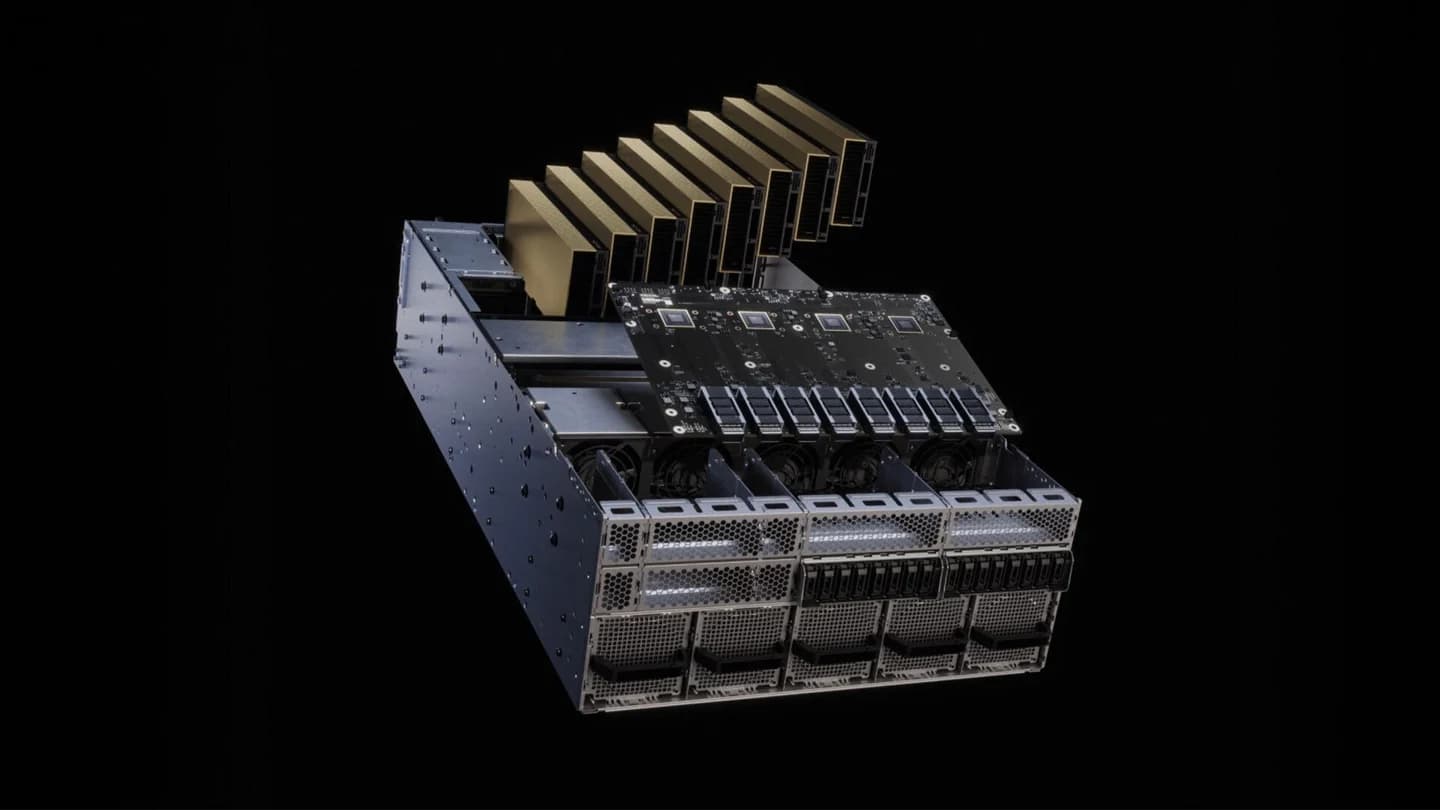
NVLink is a high-speed link between GPUs on systems that support it, while RDMA lets supported machines send and receive data over the network while reducing some of the CPU's copying work. Both require support in hardware and in software; they are not features that every GPU or every network port has [18]
How many users can it support, and what do you need to look at?
Separate "people who have accounts" from "requests being processed right now." For example, an organization may have a large number of accounts but only a few people asking questions at the same time; conversely, a few users who each submit long documents every time may consume more resources. For an LLM, look at model size, precision, input/output length, the number of concurrent requests, the KV cache, and the batching mechanism [11]
- TTFT: the time from sending the question until the first token arrives, including time spent waiting in the queue
- Answer speed: tokens/s per request, and the total time until the answer finishes — not just the machine's aggregate total
- Throughput: total jobs or tokens per second under a specified test load
- P95 latency: the duration at which 95 out of 100 requests finish no slower than this value; used to see slowdowns during periods when many people are using the system at once [21]
- Errors and quality: out-of-memory, timeouts, answers that miss the question, and separation of document permissions
A hypothetical example for the calculation: if you measure a combined 120 output tokens/s at one test load and you want an average of 20 output tokens/s per request, then dividing 120 ÷ 20 = 6 serves only as a starting point for experimenting with roughly 6 concurrent jobs. It is not a guarantee of supporting 6 people, because prefill, the KV cache, batching and answer length all change the result. You need to test several levels of concurrency with real prompts and an agreed wait-time target
Test results you should ask for along with the quotation
Specify the model name and version, quantization/context, sample questions, answer length, concurrent requests, TTFT, P95, throughput and peak memory, together with software versions, so that machines can be compared on the same workload — rather than using user counts with no conditions attached
Power supply, heat, and installation space
Draw up a power budget for the whole system: GPU + CPU + RAM + SSD/NIC + motherboard and fans, then allow headroom for sudden load changes and for the manufacturer's requirements. A TDP figure or a GPU power figure is not what the wall outlet would measure for the whole machine; PSU efficiency and the workload both affect real power draw
A hypothetical example — not a ready-made build spec and not the spec of a Dell 7875: 4 GPUs × 300 W = 1,200 W; CPU 350 W; RAM/storage/board/fans assumed to total 200 W, giving a device-side load of 1,750 W before headroom. You still have to check the PSU, the connectors, the cabling and the power it actually supports; you should not buy a 1,750 W PSU directly from this sum. Four 600 W cards come to 2,400 W for the GPUs alone, which is a completely different problem from a single-card machine
- Check the connectors and cables specified by the manufacturer; do not use adapter cables or daisy-chained splitters without certification
- With redundant PSUs, check the redundancy mode: having two units does not mean you can use their combined power while still tolerating the failure of one unit
- Passively cooled cards require the chassis airflow specified in their requirements; do not put them in an ordinary case and hope the PSU fan will do the job
- Check the outlet, the electrical circuit, and the UPS — both its W/VA rating and its backup runtime — along with heat, noise, and service access space, together with the building's facilities team
Electricity cost is calculated from the measured average power: a hypothetical example, 1 kW × 8 hours × 30 days = 240 kWh, then multiplied by your actual electricity rate. This does not yet include cooling, so you should measure both idle and your regular production workload before comparing the cost of buying versus renting
What the storage holds, and how fast it needs to be
Separate your data types before choosing an SSD and a backup system
| What is stored | Usage pattern | What to choose for a good fit |
|---|---|---|
| Operating system and applications | OS, containers, libraries | Room for updates and recovery; keep separate from important data where appropriate |
| Models and checkpoints | Large files across several versions, loaded at startup or saved during training | Capacity, sustained read/write rates, and space for versions you can roll back to |
| Image / video / document datasets | Large files, or very many small files | Look at both throughput and IOPS, including the data-loader pattern |
| Databases / vector indexes / logs | Many small reads and writes, and possibly sensitive data | Latency, endurance, access permissions, and retention policy |
| Backup | A copy kept separate from the main machine | Versioning, encryption, restore testing, and who has access |
RAID helps in some cases of disk failure, but it does not replace a backup for accidental deletion, ransomware, or loss of the whole machine.
A hypothetical example: a 500 GB dataset + 400 GB of models/checkpoints + 200 GB of cache + 100 GB for the system and logs = 1,200 GB before allowing for growth. So you need to pick a real usable capacity larger than this, and plan backups separately as well. Do not confuse raw capacity with usable capacity after RAID/formatting, and do not judge small-file workloads by peak sequential speed alone.
Draft a starting spec, then test before you buy
A draft to start the conversation with your system integrator — not a guarantee of performance
| Situation | Starting approach | Conditions to check before ordering |
|---|---|---|
| Learning or developing AI at your desk | A DGX Spark, or a PC with a 16–24 GB GPU depending on your software | Check Arm64/x86, the models you will use, and whether the speed is acceptable to you |
| A team doing imaging work and LLMs inside the organization | A workstation GPU with 32–96 GB; calculate RAM/SSD from your data inventory | Test your actual pipeline, and test it running alongside your other services |
| Multiple teams / large models / continuous training jobs | A multi-GPU or multi-node system supported by the manufacturer | Review topology, network, power/cooling, maintenance, and whole-system benchmarks |
VRAM size is not an assurance of suitability; you have to start from your model version and your own acceptance criteria.
- 1
Write down the problem and the acceptance criteria
Specify the model, the real work, concurrent users, the acceptable wait time and the data requirements
- 2
Build a memory budget
Separate model weights, cache, activations and the RAM for the surrounding jobs, then measure the peak in trials
- 3
Draw the data path
Trace Storage → CPU/RAM → PCIe → GPU, including the network and the database, and check the bottlenecks one point at a time
- 4
Check the whole machine
Read the manuals for the CPU, motherboard, DIMMs, slots, PSU, connectors and airflow system, and the list of items the manufacturer supports
- 5
Test first, then finalize the quotation
Use real datasets and concurrency, record quality, response time, power and memory, together with a scaling plan and the scope of support
If you want to evaluate this together with the Inspektion team, prepare the model name or type of work, sample data, the number of concurrent requests, the wait time you can accept and your site constraints, then look at DGX Spark, Dell AI Workstation or the Modern Data overview to choose a starting point that suits your system. For document-search work, read on at Enterprise KM Chatbot
Frequently Asked Questions
Which is suitable for a beginner, DGX Spark or a Workstation?
Look at the work and the software you need to use. DGX Spark suits developing and experimenting with AI in a small machine that has a lot of unified memory, but you have to check Arm64. A Workstation lets you choose the GPU and the components according to the platform. Both have to be tested with real models before you set a number of users.
Can two 24 GB GPUs be used in place of a single 48 GB card?
Not automatically. You need software that can split the model or the work across GPUs, and you have to check the memory on each card and the communication path. Another option is to have each GPU run a separate service instance so that more total work can be taken on.
Does adding RAM let an LLM larger than VRAM run?
Some engines support offloading to RAM, but there is a data-transfer cost and the answers may be slower. You have to check support and measure for real. A lot of RAM does not increase GPU memory, except on unified-memory systems, which have to be considered in a different way.
Do you need two CPUs in order to fit four GPUs?
Not always. Some single-CPU platforms have enough PCIe lanes. You have to check the motherboard, the slot widths, the supported cards, and the power and heat; for a two-CPU machine you also have to look at NUMA and the placement of GPU/RAM.
What do the 300,000 and 700,000 THB starting prices include?
These are the initial estimated prices of the DGX Spark and Dell AI Workstation offerings respectively. The hardware, software, installation, taxes, warranty and delivery are confirmed in the quotation; they are not fixed prices and not an assurance of a number of users.
References
- [1]
DGX Spark: specifications and workloads — NVIDIA (accessed 2026-11-14)
- [2]
Precision 7875 Tower: graphics options — Dell (accessed 2026-11-14)
- [3]
RTX PRO 6000 Blackwell Max-Q Workstation Edition — NVIDIA (accessed 2026-11-14)
- [4]
GeForce RTX 5060 family — NVIDIA (accessed 2026-11-14)
- [5]
GeForce RTX 5090 — NVIDIA (accessed 2026-11-14)
- [6]
RTX 6000 Ada Generation — NVIDIA (accessed 2026-11-14)
- [7]
RTX PRO 5000 Blackwell — NVIDIA (accessed 2026-11-14)
- [8]
H200 Tensor Core GPU — NVIDIA (accessed 2026-11-14)
- [9]
RTX PRO 6000 Blackwell Server Edition — NVIDIA (accessed 2026-11-14)
- [10]
Quantization with bitsandbytes — Hugging Face (accessed 2026-11-14)
- [11]
Optimization and Tuning — vLLM (accessed 2026-11-14)
- [12]
Memory anatomy of model training — Hugging Face (accessed 2026-11-14)
- [13]
Parameter-efficient fine-tuning: quantization — Hugging Face (accessed 2026-11-14)
- [14]
Reduce memory usage for diffusion pipelines — Hugging Face (accessed 2026-11-14)
- [15]
Performance Tuning Guide: data loading and NUMA — PyTorch (accessed 2026-11-14)
- [16]
PCIe bandwidth per direction after encoding overhead — PCI-SIG (accessed 2026-11-14)
- [17]
AMD Ryzen Threadripper PRO processors — AMD (accessed 2026-11-14)
- [18]
Distributed serving — vLLM (accessed 2026-11-14)
- [19]
DistributedDataParallel — PyTorch (accessed 2026-11-14)
- [20]
GeForce RTX 4090 specifications — NVIDIA (accessed 2026-11-14)
- [21]
LLM Benchmarking: Fundamental Concepts — NVIDIA (accessed 2026-11-14)
- [22]
Precision 7875 Tower: internal slots — Dell (accessed 2026-11-14)
- [23]
HGX GPU memory and platform specifications — NVIDIA (accessed 2026-11-14)