




Odoo 10 ERP deployment with an Android sales and production app for an industrial development institute in Thailand
Organisation: Thai-German Institute (TGI)
We deployed Odoo 10 ERP with its database and an Android app that opens the same Odoo web pages through mobile menus. The work was delivered to an industrial development institute in Thailand during 2016–2017. The installment 2 invoice, dated February 2017, states that Android app installation was complete.
- Industry
- Government
- Year
- 2016–2017
- Scope of work
- Odoo 10 installation with database · WebView-based Android app (APK installation file) · JavaScript file arranging Odoo menus for mobile screens · Installation notes · Purchase order of December 2016 through to the invoice for instalment 2 of February 2017
Summary
- We installed Odoo 10 as an ERP system with its database for an industrial development institute in Thailand during 2016–2017.
- The Android app opens the same Odoo web pages through WebView, so data from mobile phones sits in the same database used on computers.
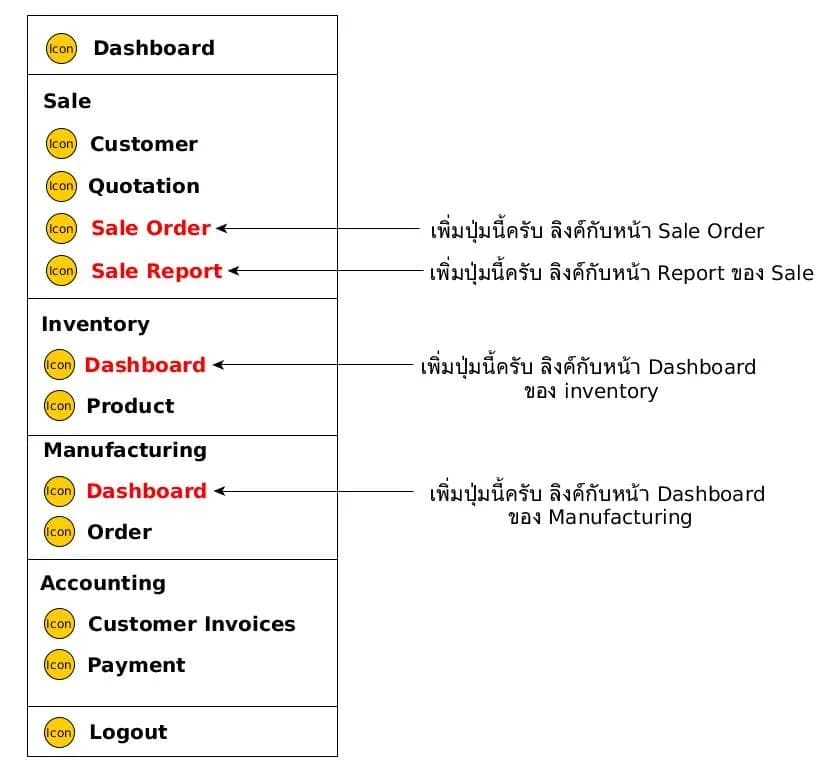
- The menus for mobile screens are dashboard, customers, quotations and sales orders, products, manufacturing orders, customer invoices and payments received.
- The invoice for instalment 2, dated February 2017, states that the Android app installation under the purchase order was completed.
- The machine status gauge dashboard in the requirements document has no evidence of delivery, so we do not count it as part of this case's work.
The on-site brief
The institute wanted to use Odoo 10 as its ERP system and to open its sales, products, manufacturing and customer accounts menus from Android phones. The requirements document also specified an additional analytics dashboard, which is not among the items with documents confirming delivery.
What we did
We installed Odoo 10 with its database and developed an Android app that opens Odoo's web pages through WebView (the component that displays web pages inside an app). A JavaScript file installed in Odoo rearranges the menus for mobile screens: dashboard, customers, quotations and sales orders, products, manufacturing orders, customer invoices and payments received.
- Odoo 10 and databaseERP system on the server
- JavaScript file in OdooRearranges menus for mobile screens
- Android app (WebView)Opens Odoo's web pages and menus
Results
The invoice for instalment 2, dated February 2017, states that the Android app installation under the purchase order was completed. For the Odoo 10 and database installation, installation notes are kept separately.
How the brief came about
An industrial development institute in Thailand wanted to use Odoo 10 as its ERP (enterprise resource planning) system for sales, products, manufacturing and customer accounts, and wanted to open this work from Android phones. Odoo 10 is used through a web browser, so this project rearranged the menus for mobile screens with a JavaScript file.
The institute's requirements document also listed other work, such as an analytics dashboard (Business Analysis Dashboard) showing machine status as colour gauges and online ordering with a customer code. These topics are requirements, not items with documents confirming delivery.
Requirements and constraints
This project required Odoo 10 as the core system and needed users to be able to open work menus from Android phones. The requirements and constraints backed by documents are as follows.
- Use Odoo 10 as the ERP system with the institute's database
- The Android phone app must be able to open the sales, products, manufacturing and customer accounts menus of the same system
- The scope under the December 2016 purchase order has a single item: the Android app
- The menu adjustments must work within Odoo's web pages, because the app opens the system's web pages directly
How the Android app opens the Odoo 10 system
The Android app opens Odoo 10's web pages through WebView (the component that displays web pages inside an app), and a JavaScript file installed in Odoo's web_editor module rearranges the menus to suit mobile screens. Users therefore work with the same Odoo system on both computers and phones.
We chose this approach because all the data was already in Odoo, so the app did not need a separate database and no new set of sales or manufacturing screens had to be built. The main work was choosing the menus used on mobile and arranging them to be easy to read on a small screen.
- 1
Install Odoo 10 and the database
Install Odoo 10 on the server and import the institute's database through Odoo's database management page (database manager).
- 2
Place the JavaScript menu file
Place the JavaScript file in Odoo's web_editor module. This file rearranges Odoo's menus when opened from the Android app.
- 3
Install the app on the phone
Install the Android app from the APK file (the app installation file on Android). The app opens Odoo's web pages through WebView.
- 4
Open work from the mobile menu
Users choose a work menu in the app and work with data in the same Odoo database used on computers.
Deliverables
We delivered Odoo 10 with its database, the WebView-based Android app, the JavaScript file that arranges the menus for mobile screens, and the installation notes. The menus in the app link to work in Odoo as follows.
Android app menus and the Odoo work they open
| App menu | Work in Odoo |
|---|---|
| Dashboard | Odoo's standard dashboard page |
| Customer | Customer data |
| Quotations and sales orders | Sales |
| Products | Product data |
| Manufacturing orders | Manufacturing work (Manufacturing Order) |
| Customer invoices | Customer accounts |
| Payments received | Recording payments received |
Results confirmed from the delivery documents
The invoice for instalment 2, issued to the institute in February 2017, states that the Android app installation under the purchase order was completed. The first instalment has a receipt dated January 2017. For the Odoo 10 and database installation, installation notes are kept separately.
This case's documents contain no figures measuring usage and no records of use after delivery, so we report only the delivery confirmed by documents. The machine status gauge dashboard and the retrieval of actual production figures from an external database appear only in the requirements document, so they are not counted as results of this case.
What we learned
The key principle from this work is to make the ERP system the single place where data is stored, then have the mobile app open that system's web pages directly. The principles applicable to bringing an ERP onto mobile are as follows.
- Keep the core system as the single place where data is stored. When a mobile app opens the ERP's web pages directly, data from mobile and from computers does not diverge, and there is no need to maintain two databases.
- Choose menus according to the work actually done on mobile. There is no need to move every ERP menu into the app. Fewer menus help users find the task they need quickly on a small screen.
- Separate the requirements document from the acceptance checklist. In this project, the requirements document had more topics than the items in the purchase order. An acceptance checklist written item by item helps both parties know which parts have been delivered.
How to apply this approach to your ERP system
If your organisation already uses Odoo or a web-based ERP system, you can use the same approach as this case: open the system's web pages through a mobile app and arrange menus only for the work done on mobile. What needs adjusting is the system version, the menus you need, and any work that must be usable even without internet access.
Reusable parts and parts that need adapting
| Part of the work | Reusable | Needs adapting when |
|---|---|---|
| Connecting the app to the system | The app opens the ERP's web pages through WebView | If it must work without internet access, or must use the phone's camera and other devices, a different type of app must be designed |
| Menu arrangement | JavaScript file that arranges Odoo menus for mobile screens | If the system is another Odoo version or another ERP, the web page structure must be checked and the menu arrangement rewritten |
| Menu list | Sales, products, manufacturing and customer accounts menus | If mobile users' work differs from this case, menus must be chosen anew according to the actual work |
| Installation | Install the system, database, menu file and app according to the installation notes | If the organisation uses iOS or has a specific app installation policy, app distribution methods must also be assessed |
- Identify the ERP version in use and check whether it can be opened in a mobile web browser
- List the menus users actually need on mobile, separately from those used on computers
- Write an item-by-item acceptance checklist, separate from the requirements document, before development starts
Technology used
Frequently Asked Questions
How does the Android app connect to Odoo?
The app opens Odoo 10's web pages through WebView, and a JavaScript file installed in Odoo rearranges the menus for mobile screens. The app has no separate database; all data is in the same Odoo database used on computers.
What menus does the app have?
The menus in the app are dashboard, customers, quotations and sales orders, products, manufacturing orders, customer invoices and payments received. Each menu opens the corresponding work page in Odoo.
Has the colour gauge dashboard been delivered?
There are no documents confirming delivery. The machine status gauge dashboard appears only in the requirements document, so we do not state that this function is in use. The dashboard menu in the app opens Odoo's standard dashboard page.
Can this approach be used with other ERP systems?
Yes, if your ERP runs on the web. A mobile app can open the system's web pages in the same way. However, the menu arrangement must be rewritten to match that system's web page structure, and the actual system must be checked before the work is estimated.